External Users & Directory Sync
BlueRange can import users and groups from an external directory service such as LDAP / Active Directory or Microsoft Entra ID (Azure AD). This lets your users sign in with their existing company credentials and keeps group membership in sync with your directory.
Owned vs. Managed
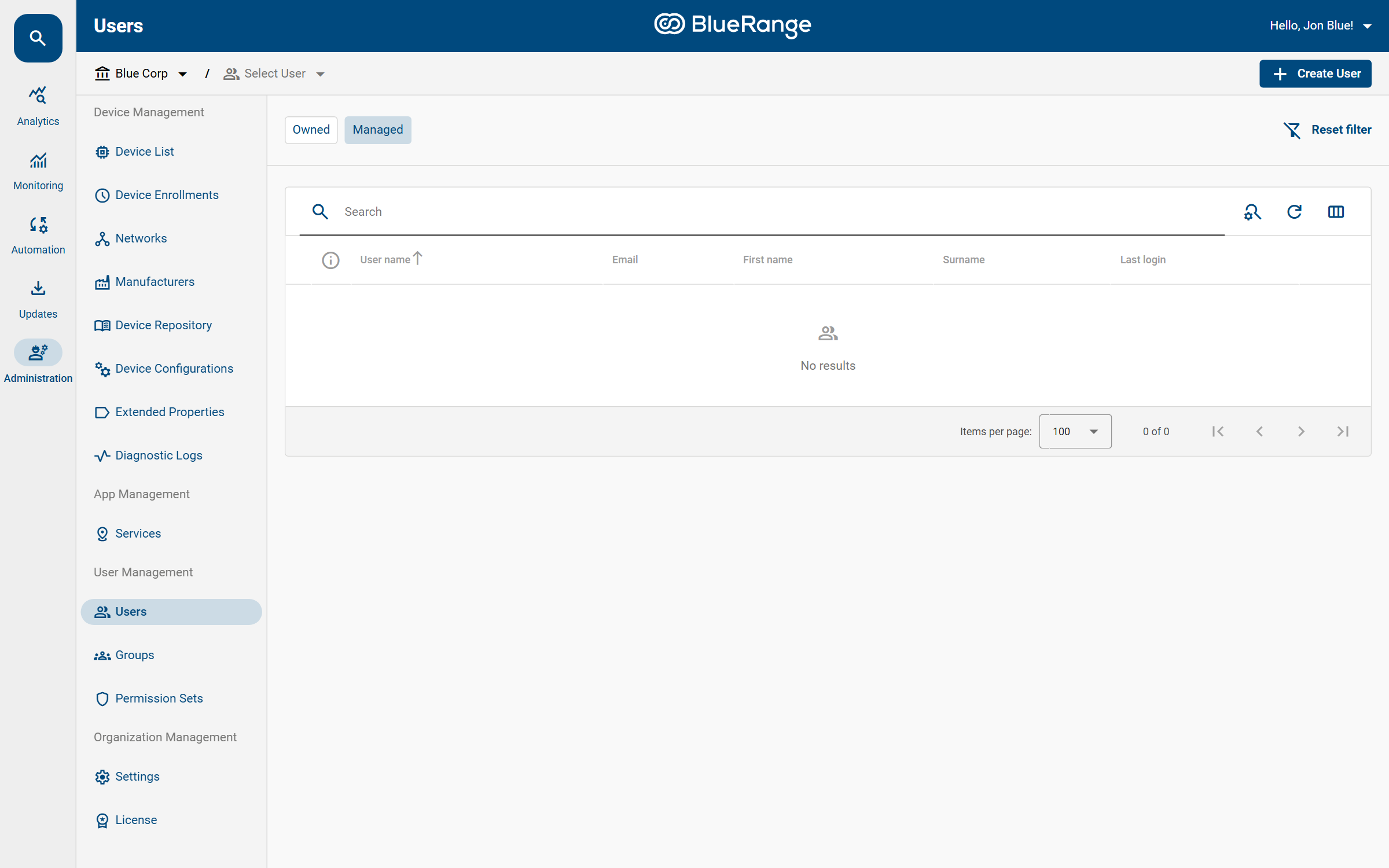
Every user, group and permission set belongs to one of two categories, shown as tabs in the respective list:
- Owned
-
Created within the current organization. Because they belong to this organization, you can freely edit and delete them.
- Managed
-
Provided from outside the current organization and therefore read-only here. There are two common sources: an external directory service (LDAP or Microsoft Entra ID), or a system administrator who created the entity centrally and made it available to all organizations (for example a published permission set). A Provider field indicates where a managed entity comes from.
How Directory Sync Works
The connection to your directory is configured on the server side by your BlueRange operator. This is typically relevant for on-premise and dedicated cloud installations. Once configured:
-
Matching users from the directory are imported as Managed users and can log in with their directory credentials.
-
The groups those users belong to are imported as Managed groups, mirroring your directory structure.
|
There is no LDAP setup screen inside the Portal. Directory synchronization is set up as part of the server installation. The full configuration is described in the installation guide:
If you need directory synchronization enabled or changed, contact your system administrator or BlueRange support. |
Giving Directory Users Access
Imported (Managed) users and groups have no permissions until you grant them some. Because Managed entities are read-only, you grant access from the BlueRange side:
-
Assign Permission Sets to a Managed group. Every directory user in that group then receives those permissions. This is the recommended approach, as it keeps access tied to your directory groups.
-
Add a Managed group or user to one of your Owned groups through nesting. The imported members then inherit everything assigned to your group.
You can also restrict such access to specific buildings or devices with Partial Permissions, exactly as for local users.
Example: Your directory has a group Facility-Staff. After sync it appears as a Managed group in BlueRange. Assign the Facility Manager permission set to it (optionally scoped to one building), and every directory member of Facility-Staff immediately has the right access, with no per-user configuration needed.
See Also
-
Permission System (the overall model)
-
Managing Groups (nesting groups)
-
Permission Sets (granting permissions)
-
LDAP Login Integration (server-side setup)