System Administration
This page covers tasks that are reserved for a System Administrator, the global superuser of a BlueRange installation. These features are available on on-premise and dedicated cloud installations.
| A System Administrator belongs to the global system organization and to its ADMIN group. A System Administrator manages all organizations, users and groups, but does not take part in the day-to-day IoT features of an individual organization. See System Administrator for the role itself. |
Home Organization
Every user belongs to exactly one home organization, the organization it was created in. The home organization cannot be changed.
-
A user is only listed in the Users view of its home organization. Administrators of other organizations do not see it there, even if it has access to their organization.
-
Through group membership a user can still work in other organizations (see Multi-Tenancy), but its account continues to live in its home organization.
|
Create users in a real organization, not in the global system organization. Users created in the system organization are hard to manage: they are invisible to normal organization administrators, and they mix platform-wide administration with everyday work. Create each user in the organization it primarily belongs to, and grant cross-organization access through groups where needed. |
What an Organization Can See
From within an organization, an administrator only sees the users, groups and permission sets that were created in that organization. This keeps each organization’s administration self-contained.
As a consequence:
-
Other users may still have access to the organization (for example accounts a System Administrator granted access to), but they are not visible in the organization’s own Users list.
-
To see and manage everything across all organizations, use a System Administrator account.
Managing Users and Groups Across Organizations
A System Administrator works from the Global organization and sees the Users, Groups and Permission Sets of every organization at once. Each list has an Organization column showing which organization an entry belongs to. Use the search box to narrow the list down.
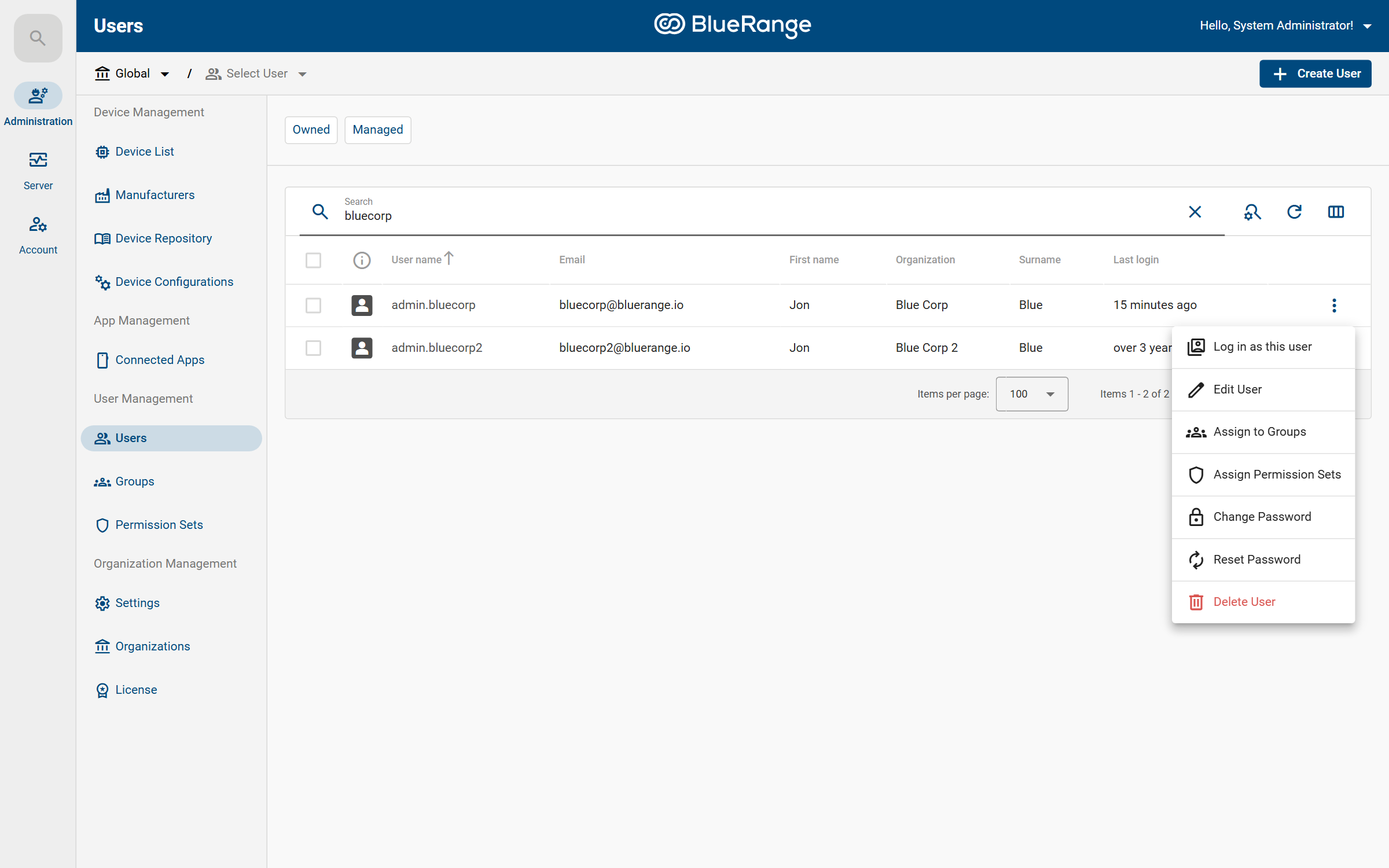
From a user’s context menu (⋮) a System Administrator can edit the user, assign it to groups or permission sets, change or reset its password, delete it, or log in as the user.
Impersonation (Log in as this user)
Log in as this user lets a System Administrator temporarily act as another user, seeing exactly what that user sees. This is the quickest way to reproduce a problem a user reports or to verify that a user’s permissions are set up correctly.
-
Open the user (or its context menu) and choose Log in as this user.
-
You now browse the Portal with that user’s permissions until you switch back.
| Impersonation is a system-administrator capability (it requires the Impersonation permission, which only exists in the system organization). Ordinary organization administrators do not have it. |
Setting up Organizations
All organizations are listed under > Administration > Organization Management > Organizations.
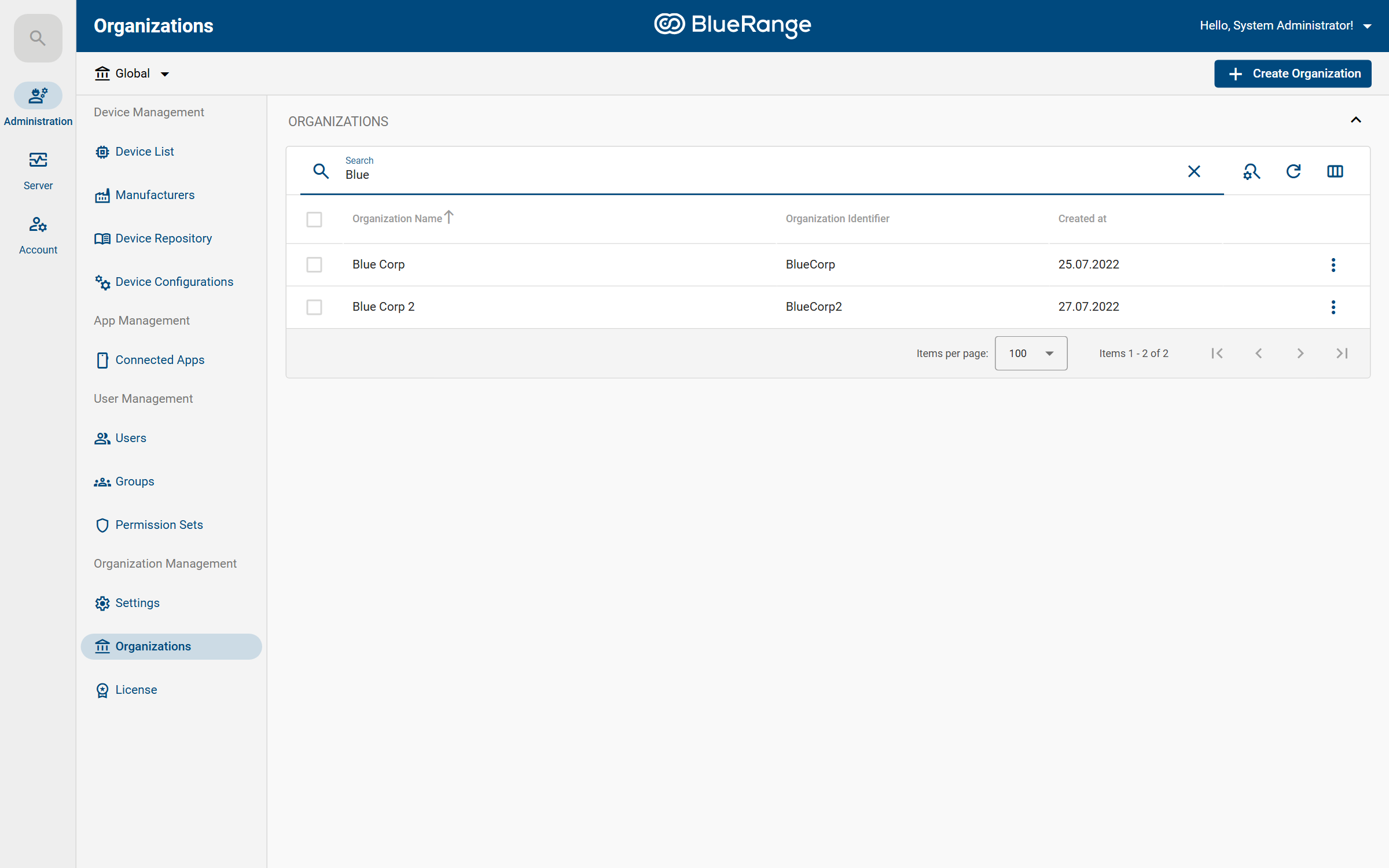
Click Create Organization to add one. A short wizard collects the details:
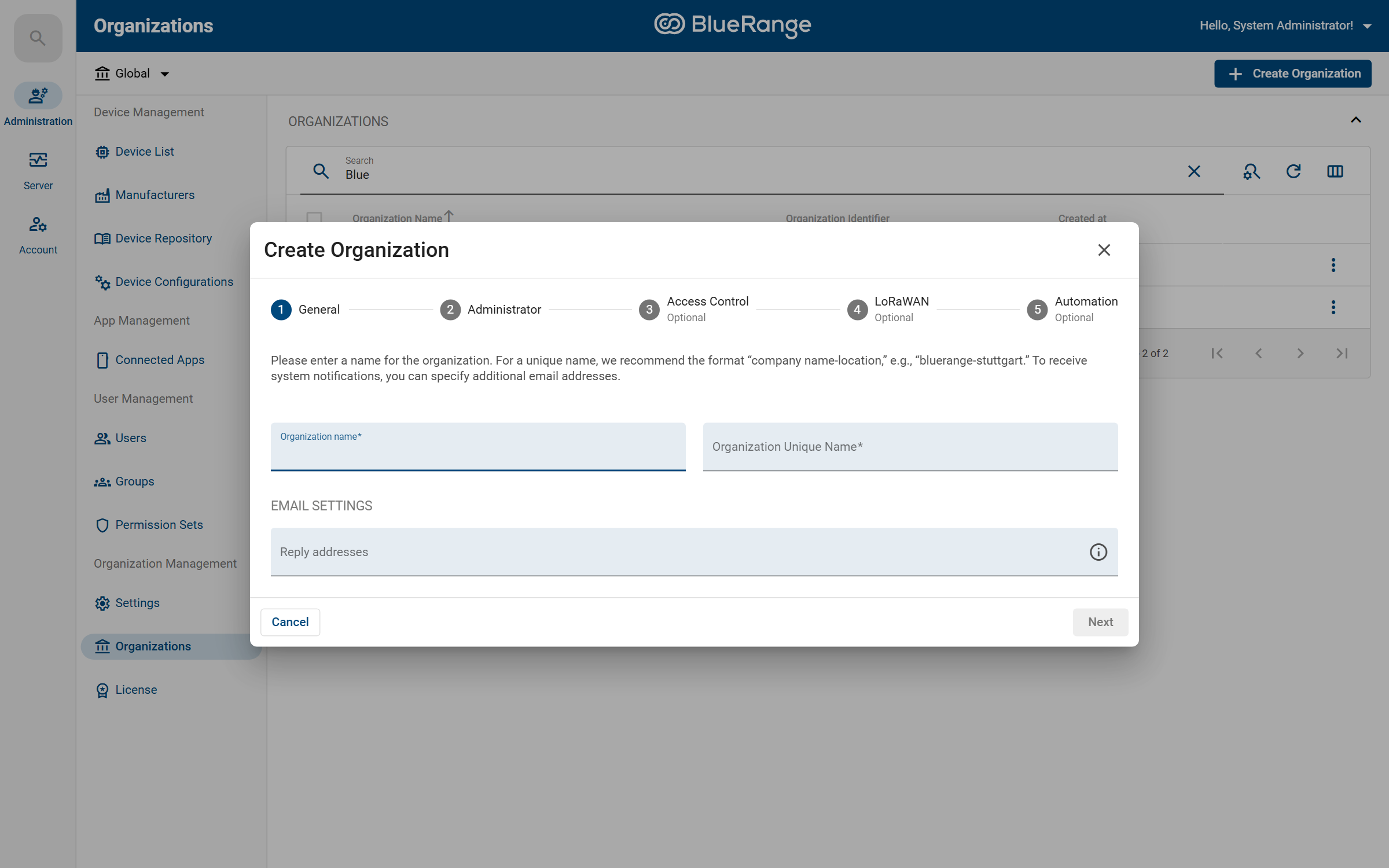
-
General – the organization name (free text) and a Unique Name without spaces or special characters. The recommended format for the unique name is
company-location, for examplebluerange-stuttgart. -
Administrator – the first administrator account for the new organization.
-
Access Control, LoRaWAN and Automation – optional integrations you can configure now or later.
Once created, you can log in with the administrator account you defined to manage the organization itself.
Multi-Tenancy
BlueRange lets a single user work in more than one organization. Such a user sees an organization switcher in the top-left corner and every page and action is performed in the context of the selected organization.
There are two ways to give a user access to several organizations:
- Add the user to groups in each organization directly
-
Assign the user to groups from every organization it should reach.
- Nest a group across organizations
-
A group’s Members list may contain groups from other organizations. Because group membership carries permissions downward, you can grant cross-organization access to a whole team at once.
Example of cross-organization nesting:
-
In Orga 1, create the group your users will belong to.
-
Make that group a member of a group in Orga 2 (add the Orga 2 group as its Parent Group).
-
Add your users to the Orga 1 group only.
In the screenshot below, the Facility Team group (in Blue Corp) has a group from Blue Corp 2 as a parent group. Every member of Facility Team therefore also gains the Blue Corp 2 group’s permissions:
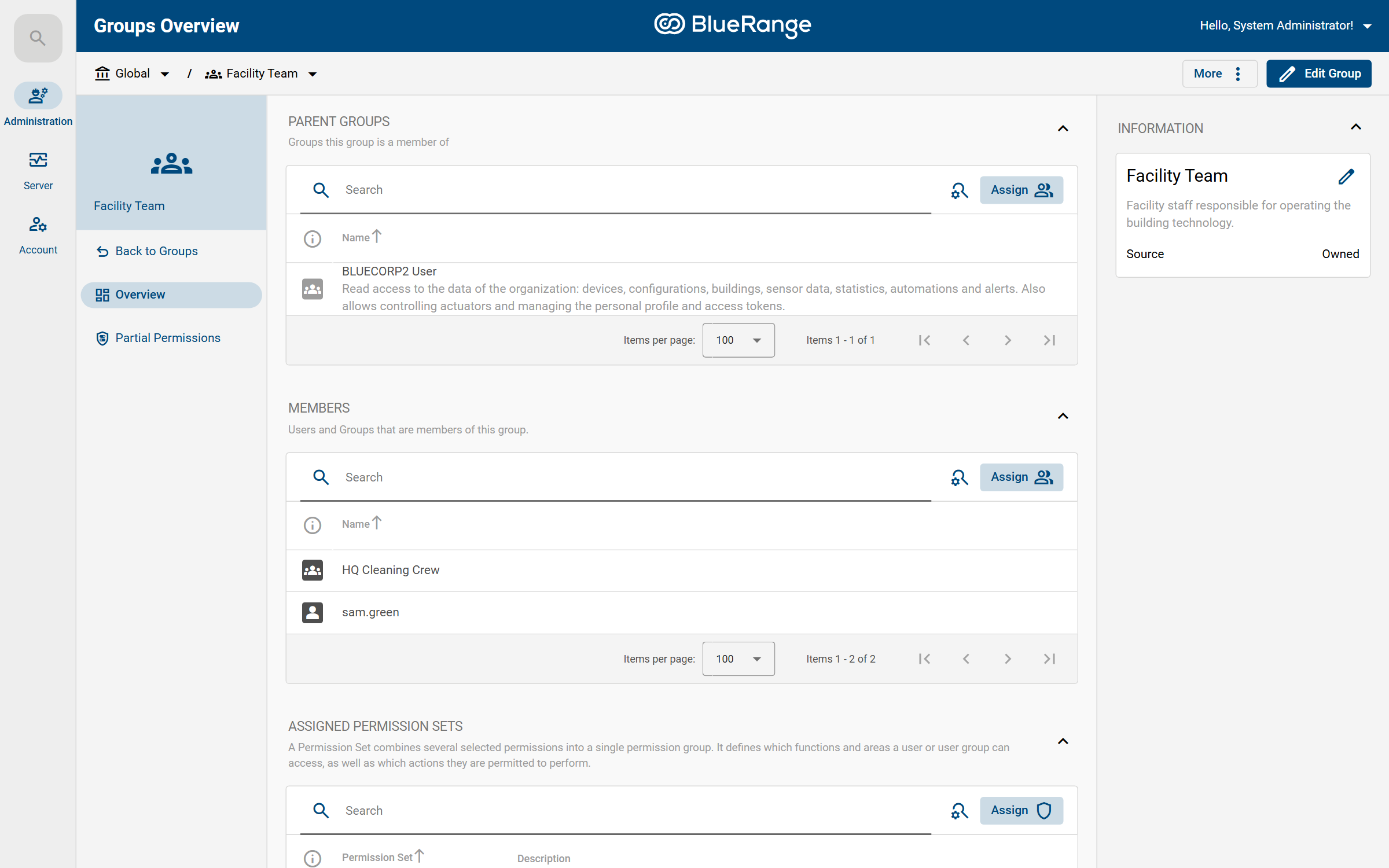
As a result, a member such as Sam Green now has access to both organizations and sees both in the organization switcher:
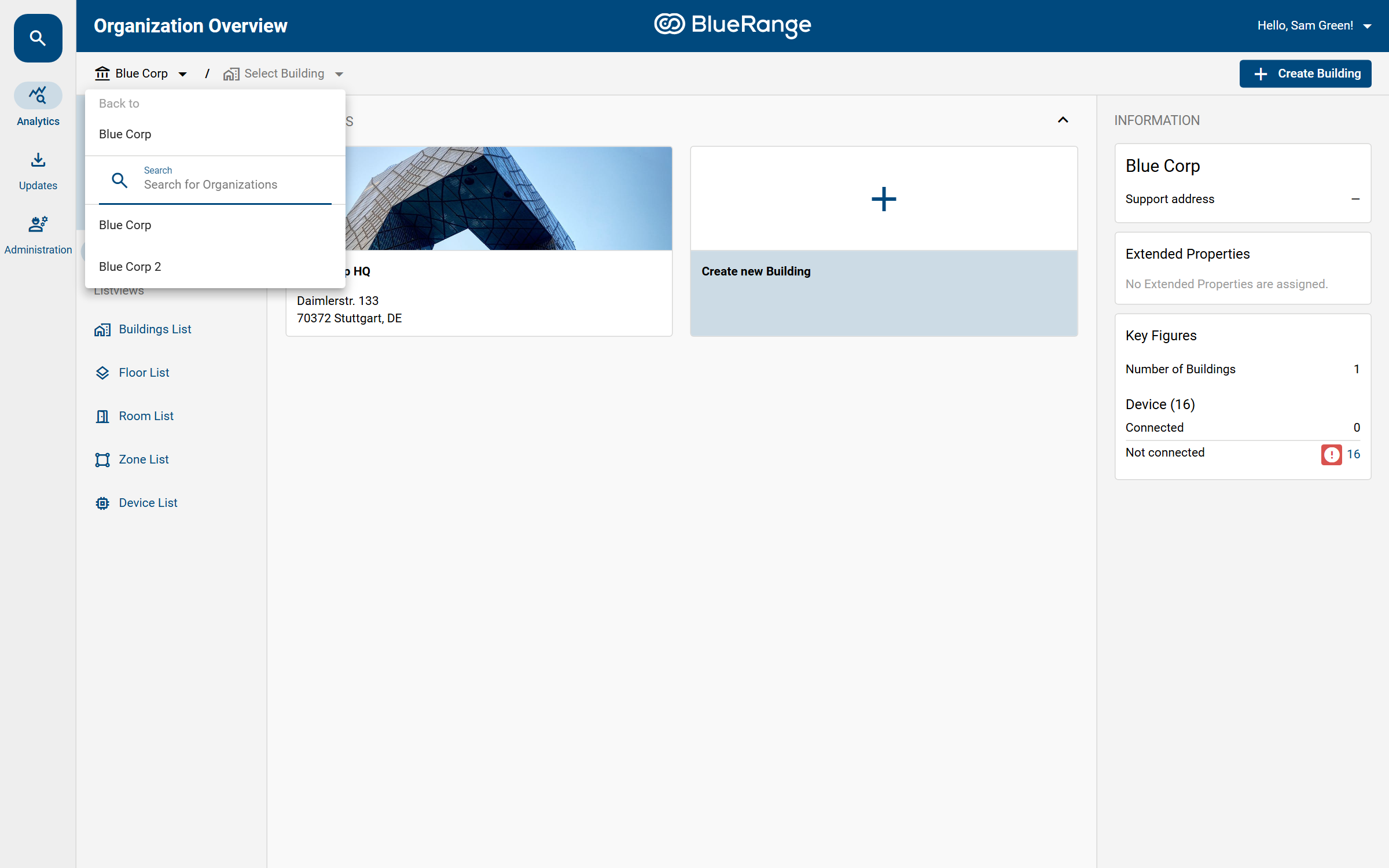
This way you manage the users in a single place while their access spans both organizations. To revoke the cross-organization access again, remove the nesting between the two groups.
| Each user still has a single home organization and remains invisible in the user lists of the other organizations. |
Publishing Permission Sets
A System Administrator can create a Permission Set in the system organization and publish it. A published permission set becomes available to all organizations, where it appears on the Managed tab as a read-only, centrally maintained set.
This is useful for standardizing roles across every organization: define a role once, publish it, and each organization can assign it without having to recreate it.
To publish a set, set its Scope to Published in the permission-set editor. Organizations then see it as Managed and can assign it to their users and groups, but cannot edit it.