Permission Sets
A Permission Set combines several individual permissions into a single, reusable bundle. It defines what a user or group is allowed to do. You assign permission sets to groups (recommended) or directly to users.
| Managing permission sets requires the permissions of the Administrator role. |
Opening the Permission Set List
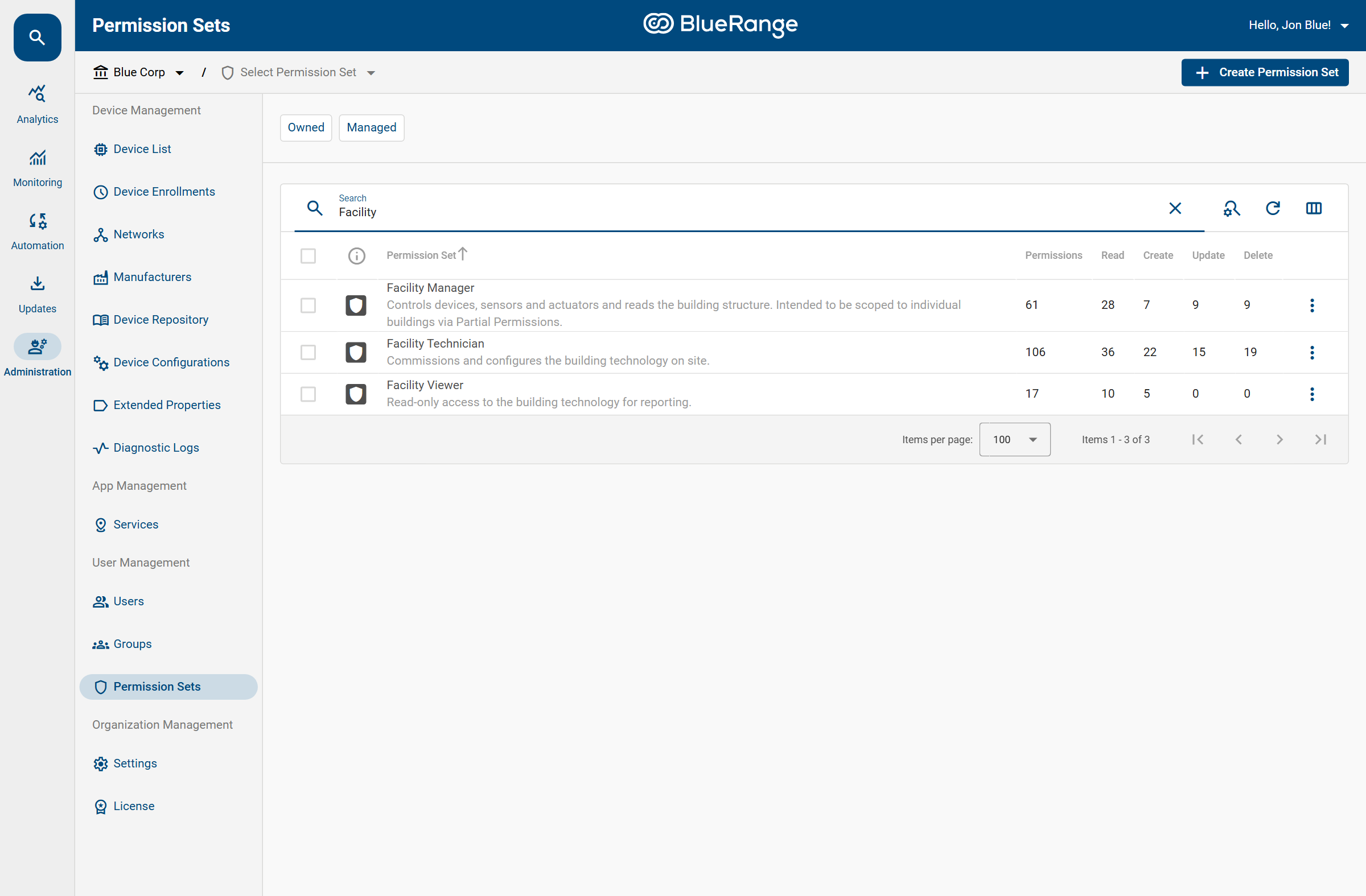
Navigate to > Administration > User Management > Permission Sets. The list contains the predefined permission sets as well as any custom ones you create. Use the search box to filter by name. The columns Read, Create, Update and Delete summarize how many permissions of each action the set grants.
Permissions and Actions
A permission set is a grid of permissions (grouped into categories such as Building Structure, Device Management or Sensors & Monitoring) and actions:
| Action | Meaning |
|---|---|
Read |
View the entity. |
Create |
Create new entities. |
Update |
Modify existing entities. |
Delete |
Remove entities. |
A dash (–) means the action does not apply to that permission. Some actions imply others. For example, granting Update automatically grants Read, which is then shown as a locked checkbox.
Creating a Permission Set
-
Click
Create Permission Setin the top right corner. -
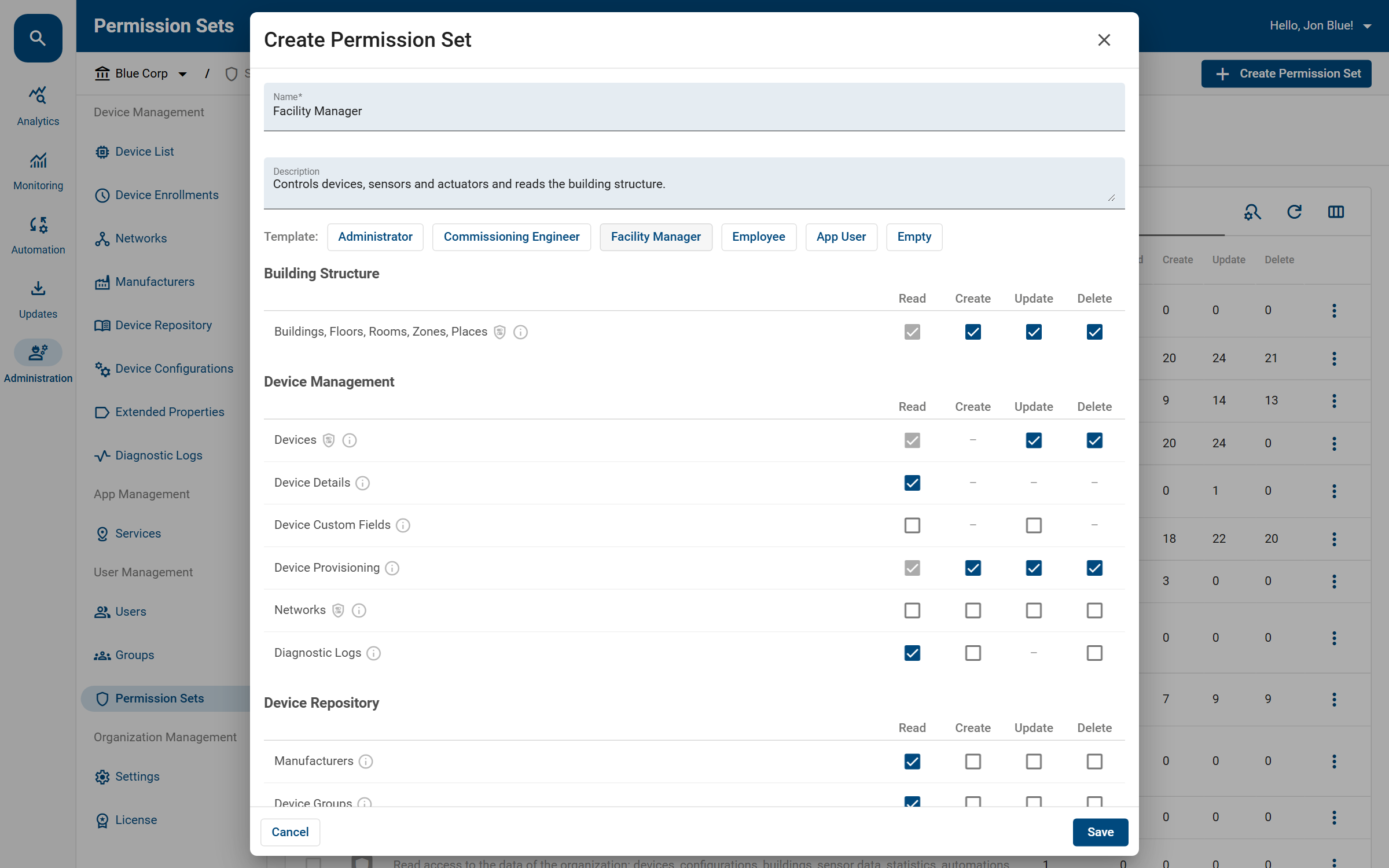
Enter a Name and an optional Description.
-
Optionally click a Template (e.g. Facility Manager or Commissioning Engineer) to pre-fill a typical set of permissions that you can then adjust.
-
Tick the checkboxes for the permissions and actions the set should grant.
-
Click
Save.
| Start from the closest Template and remove what you do not need, rather than building a set from scratch. |
The Employee template is meant for Office App users. It grants the room controls, Environmental Sensors and MQTT Read, but not Sensor Data. Restrict it to the employees' rooms as shown in Example 3: Office App Users Limited to Their Rooms.
Reviewing a Permission Set
Open a permission set to see a read-only overview of everything it grants. Granted actions show a green check, denied actions a red cross, and non-applicable actions a grey dash.
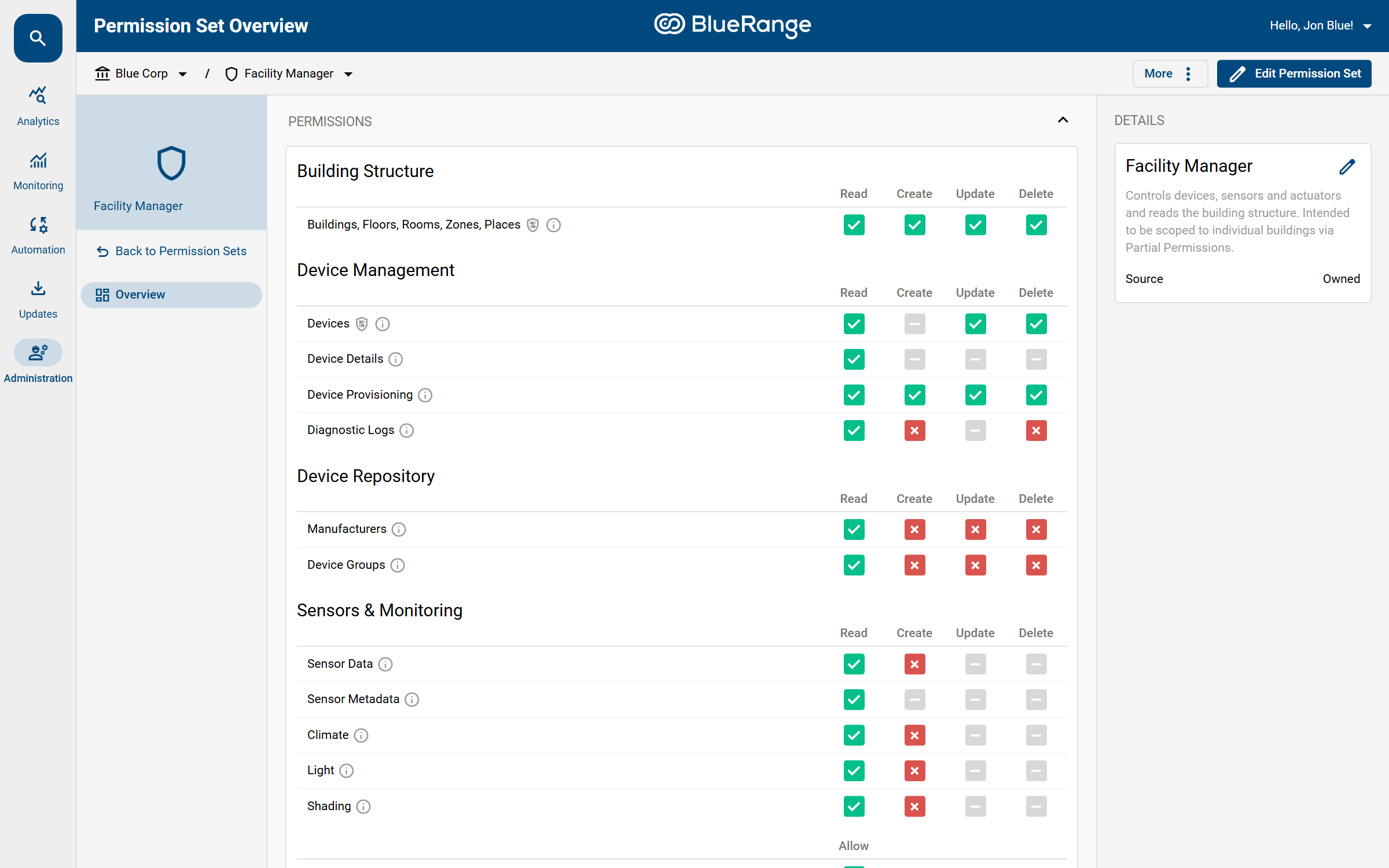
Use Edit Permission Set to change it, or the More menu to delete it.
Permissions That Can Be Restricted
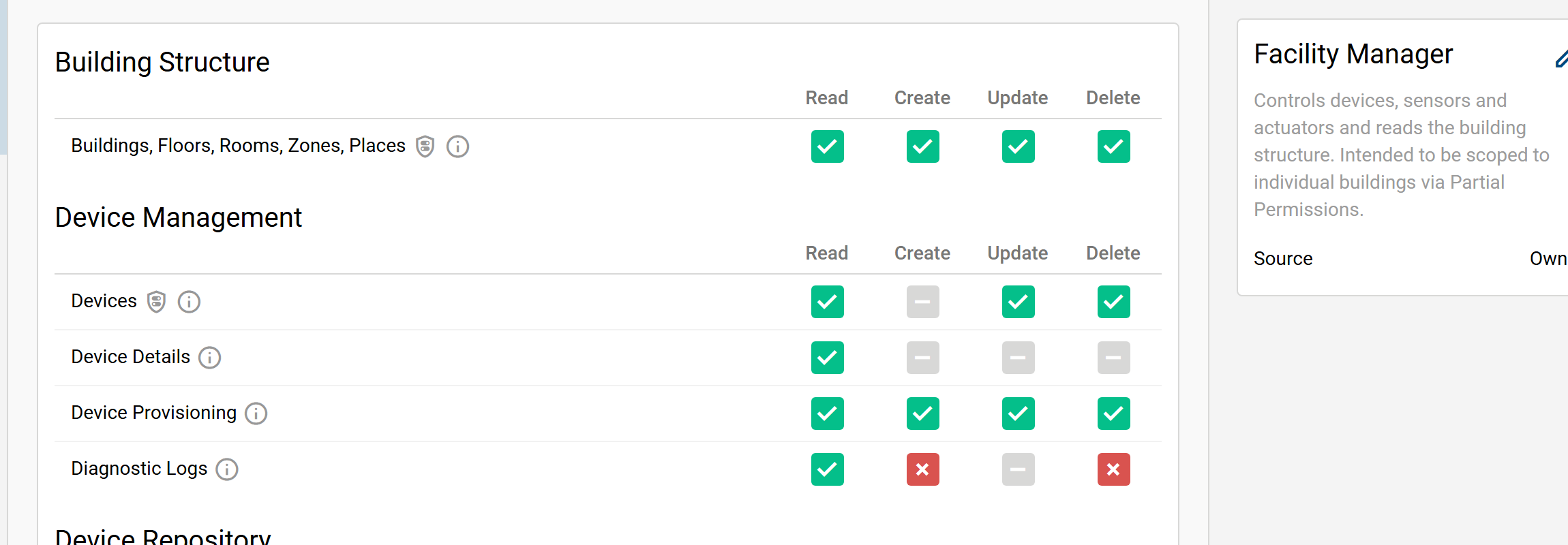
Some permissions can be granted for only specific entities; others always apply organization-wide. In the permission grid, the ones that can be scoped this way are marked with a small shield icon:
-
Can be restricted (shield icon): permissions on the building structure (Buildings, Floors, Rooms, Zones, Places), Networks and Devices, and the Read action of MQTT. For MQTT, only Read can be restricted; Write always applies organization-wide.
-
Always organization-wide (no shield icon): everything else, for example Device Details, Device Provisioning, Diagnostic Logs, sensor data, users, alerts and settings.
The actual restriction is configured per assignment via Partial Permissions.
Sensor permissions such as Environmental Sensors or Lighting Control are not restricted themselves. They decide which sensor types a user may read (see Which Permission Reads Which Sensor Type), while a restricted MQTT Read decides for which devices live data is available.
|
Keep restrictable and always-global permissions in separate permission sets. When you scope a permission set to certain buildings or devices, only its shield-marked permissions are restricted; every other permission in the same set still applies organization-wide. If you would rather not have some permissions scoped together with the building and device permissions, put them in their own permission set. This keeps each set’s reach predictable and makes your setup future-proof if you decide to scope things later. |
The Scope Option
When you edit a permission set you may see a Scope option with the values Not Published and Published. This is a system-administrator feature for sharing a set across organizations; see Publishing Permission Sets. For a normal organization you can leave it at Not Published.
Assigning a Permission Set
Permission sets are not useful on their own, so assign them where they are needed:
To restrict an assignment to certain buildings or devices, continue with Partial Permissions.
See Also
-
Default Groups & Permission Sets (the predefined sets and what they grant)
-
Partial Permissions (restricting a set to specific entities)