Permission System
BlueRange uses a flexible, fine-grained permission system to control what each user is allowed to see and do. This chapter explains the building blocks and links to step-by-step guides for the individual management tasks.
All user, group and permission management is found under the Administration module in the main navigation on the left, grouped in the sidebar under User Management.
The Building Blocks
The permission system is built from four concepts that work together:
| Concept | Description |
|---|---|
A named bundle of individual permissions. It defines what someone may do, e.g. read buildings, control actuators or manage devices. Each permission can be granted per action (Create, Read, Update, Delete). |
|
A collection of users (and other groups). It defines who belongs together, e.g. a team or a department. Permission Sets assigned to a group apply to all of its members. |
|
An account that can log in to the BlueRange Portal. A user receives permissions through the groups they are a member of and through Permission Sets assigned directly to them. |
|
An optional way to grant a Permission Set for only specific buildings, networks or devices instead of the whole organization. It defines where a permission applies. |
| A good rule of thumb: Permission Sets describe what can be done, Groups describe who does it, and Partial Permissions describe where it applies. |
How Permissions Add Up
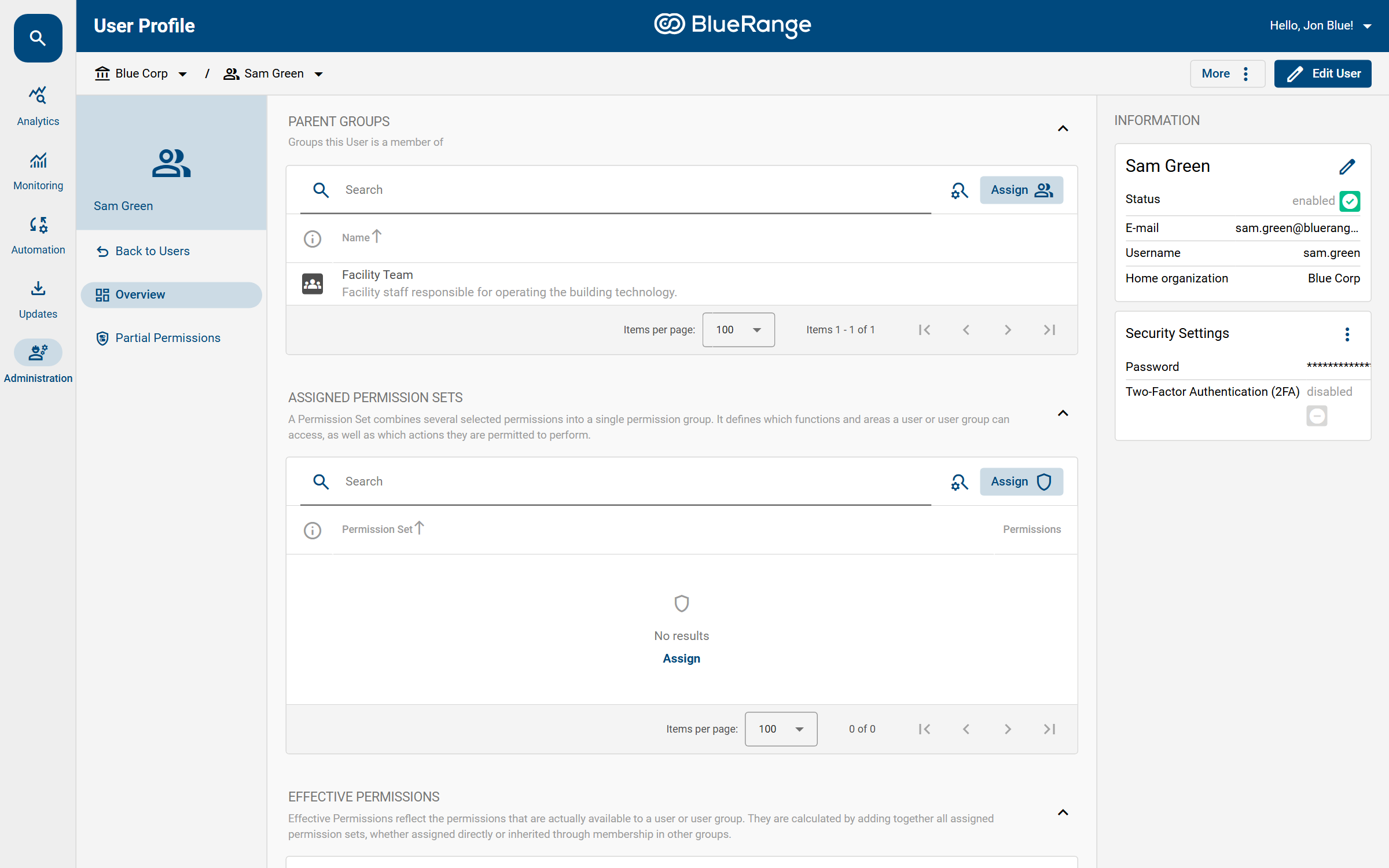
A user never has permissions on their own. Their effective permissions are the sum of:
-
all Permission Sets assigned directly to the user, plus
-
all Permission Sets assigned to every group the user is a member of, directly or indirectly through nested groups.
|
Permissions are always additive. They only ever add up and are never taken away.
To reduce what someone can do, remove them from the group or remove the permission set that grants it. You cannot override a grant with a second, more restrictive one. |
Reading the Effective Permissions
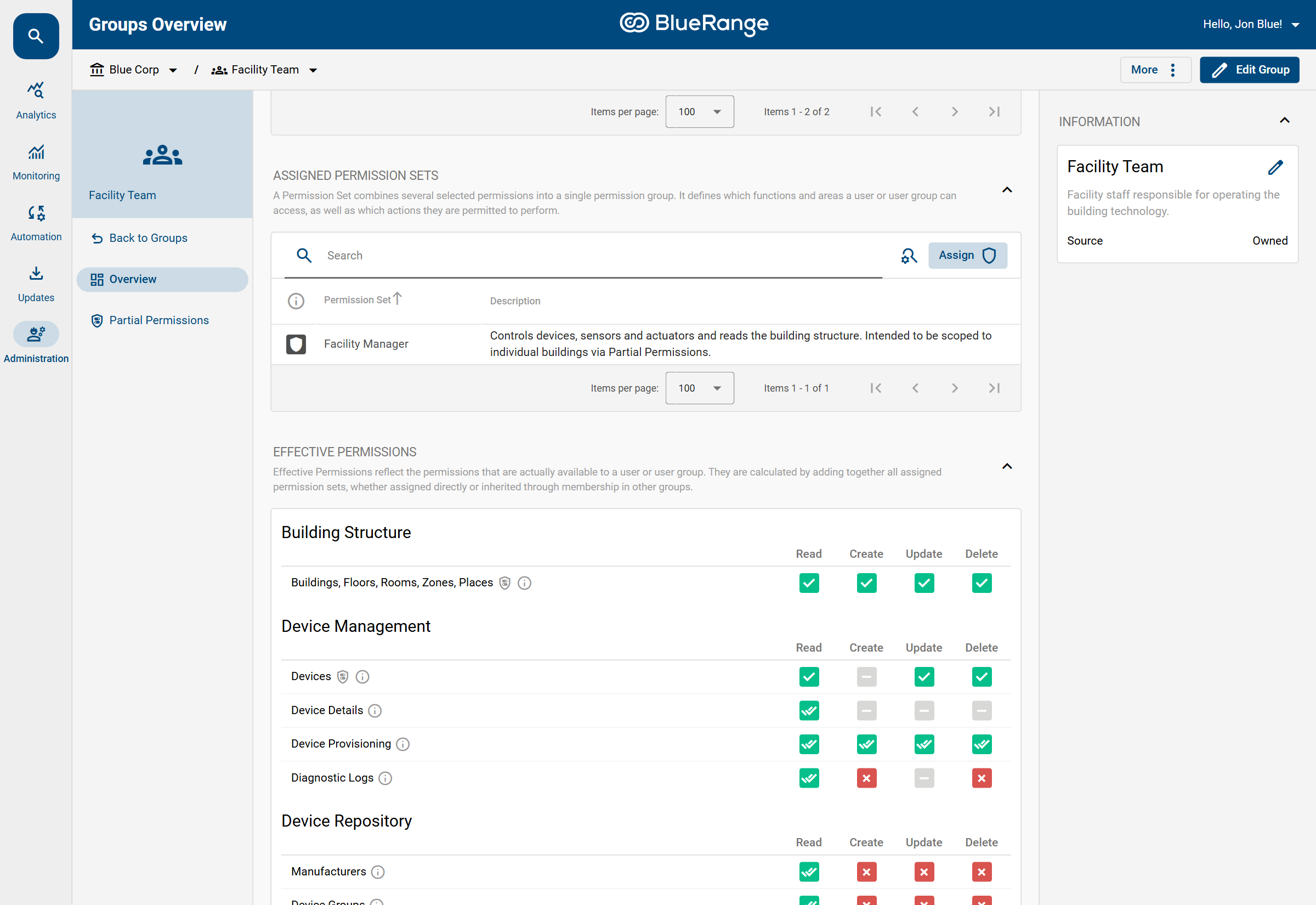
The Effective Permissions card on every user and group page shows the final, calculated result as a grid of permissions and actions. The icons tell you how each action is granted:
| Icon | Meaning |
|---|---|
Green double check (✓✓) |
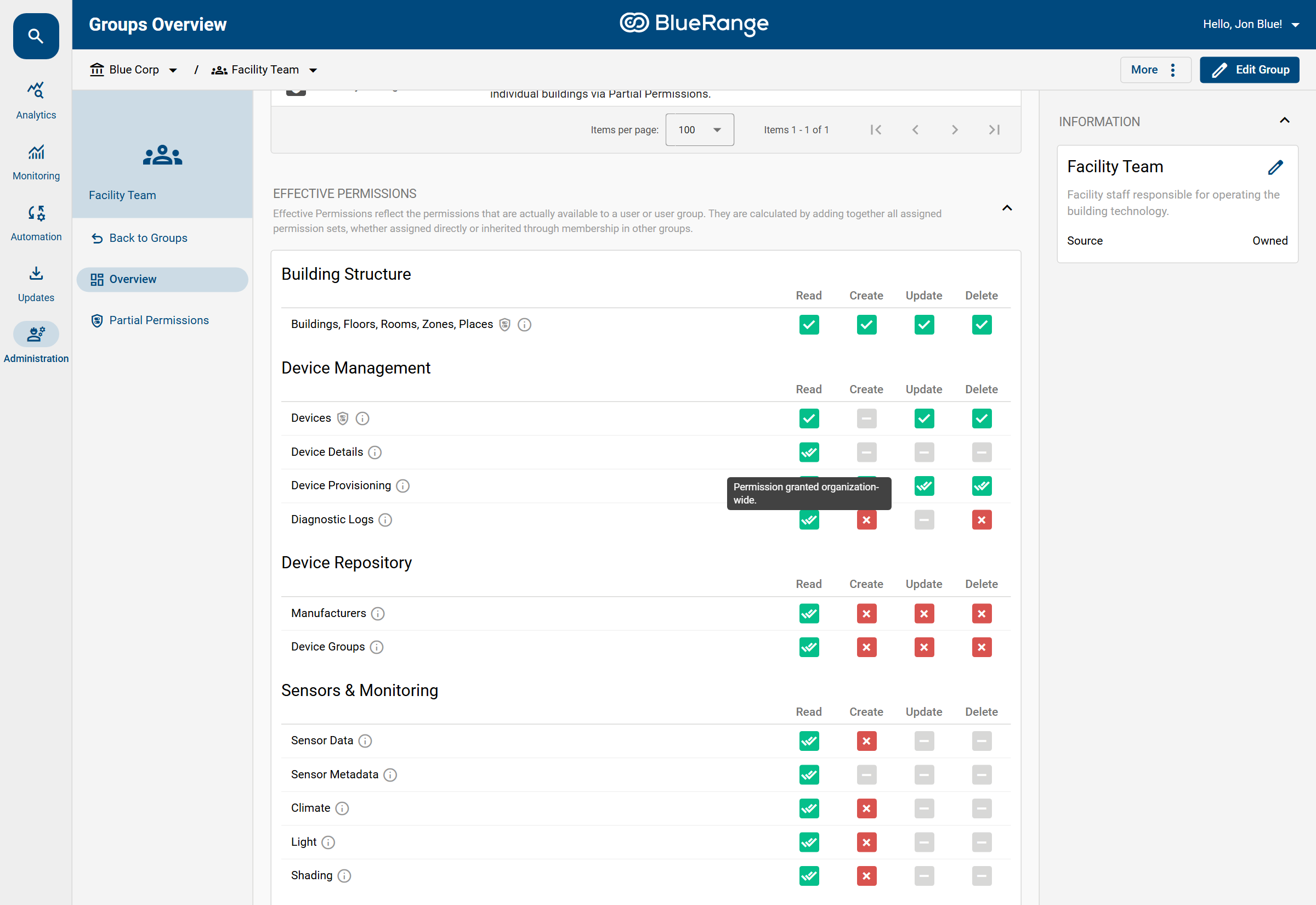
Granted organization-wide, applying to the entire organization. |
Green single check (✓) |
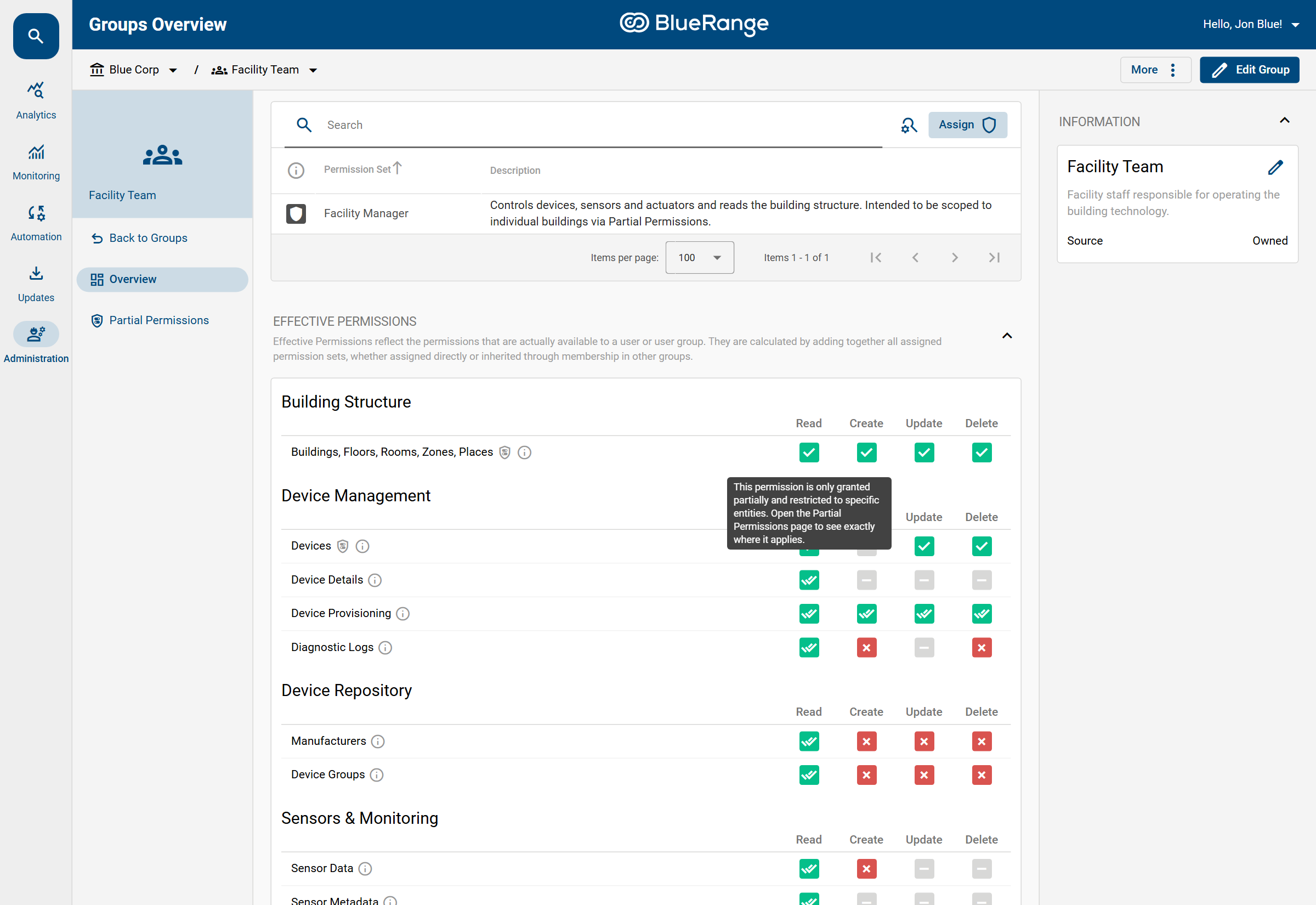
Granted partially, restricted to specific buildings, networks or devices via Partial Permissions. |
Red cross |
Not granted. |
Grey dash (–) |
Not applicable for this permission. |
Hovering an icon shows a tooltip that explains exactly how the permission is granted. A single check is a partial grant restricted to specific entities:
A double check is granted for the whole organization:
Recommended Approach
For most organizations we recommend the following model:
-
Keep the predefined groups and permission sets for standard roles like administrators and device managers.
-
Create your own Permission Sets for any custom role that the defaults do not cover.
-
Create Groups for your teams and assign the matching Permission Sets to them.
-
Add your Users to those groups.
-
Optionally, use Partial Permissions to restrict a team to the buildings or devices they are responsible for.
Owned vs. Managed
Every user, group and permission set is either Owned or Managed:
-
Owned entities were created within the current organization. You can edit and delete them.
-
Managed entities come from outside the current organization and are read-only here, shown on the Managed tab. They are provided either by an external directory service (LDAP or Microsoft Entra ID) or by a system administrator who made them available to all organizations (for example a published permission set).
See External Users & Directory Sync for details.
In This Chapter
-
Managing Users (create users and assign their access)
-
Managing Groups (organize users into teams and nest groups)
-
Permission Sets (define what a role may do)
-
Partial Permissions (restrict access to specific buildings or devices)
-
External Users & Directory Sync (LDAP and Entra ID users)
-
Default Groups & Permission Sets (reference of the predefined roles)