Managing Users
A User is an account that can log in to the BlueRange Portal. This page describes how to create users and give them access. For the underlying concepts see the Permission System overview.
| Managing users requires the permissions of the Administrator role (or a custom permission set with the Users and Groups permissions). |
Opening the User List
Navigate to > Administration > User Management > Users to see all users of your organization.
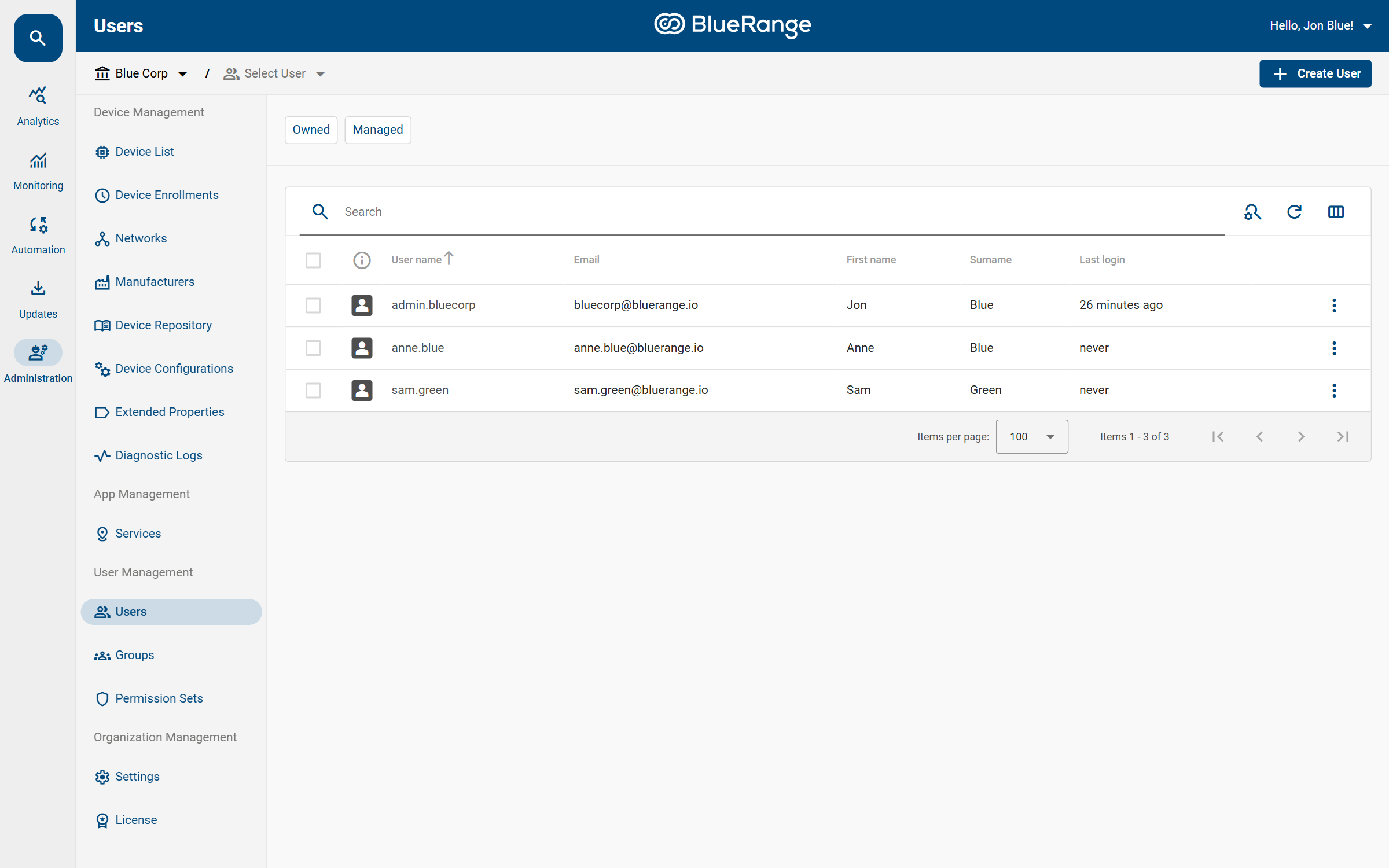
The list separates Owned users (created in BlueRange) from Managed users (provided by an external directory, see External Users & Directory Sync).
Creating a User
-
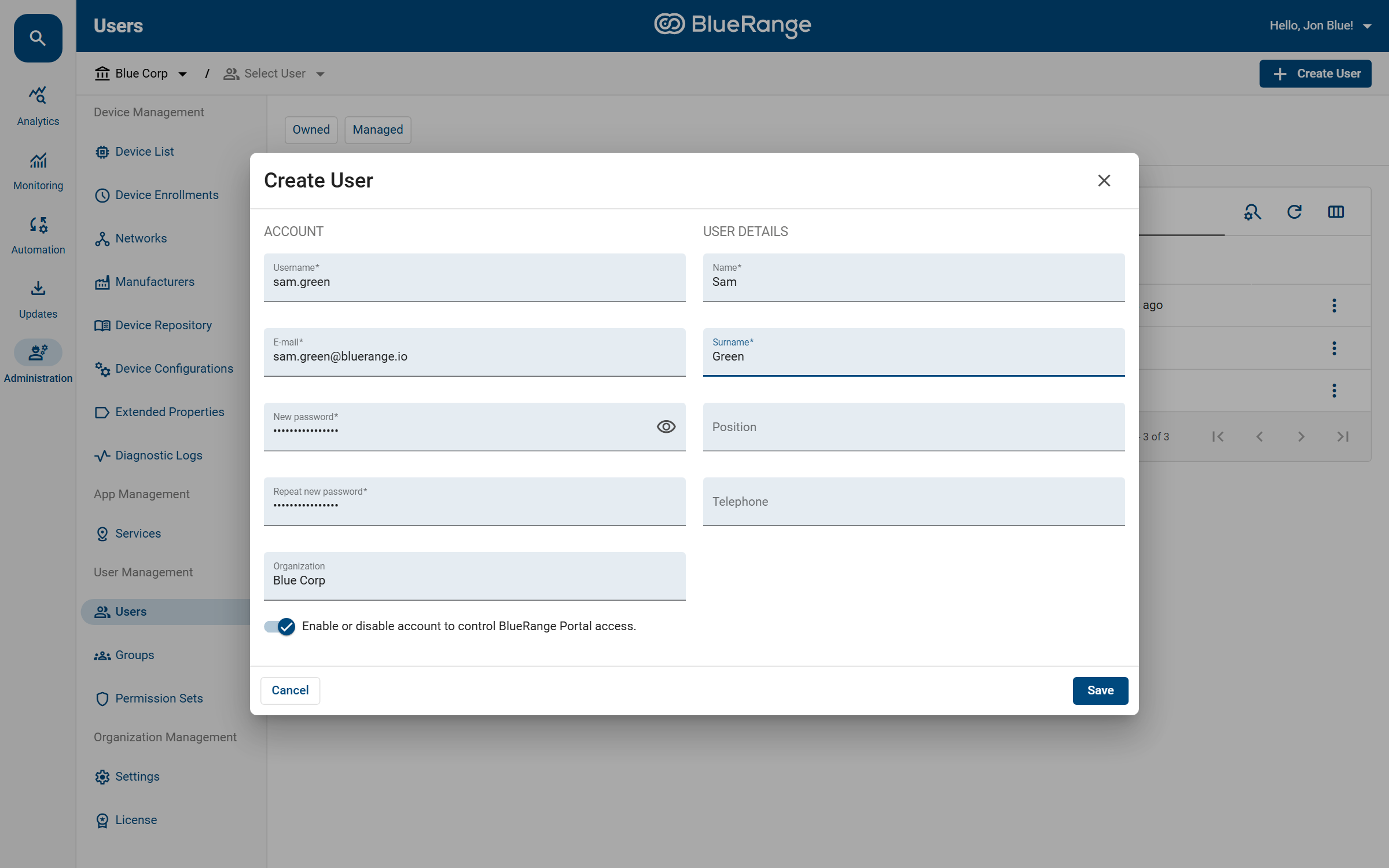
Click
Create Userin the top right corner. -
Fill in the required fields (marked with an asterisk): Username, E-mail, a Password (twice), Name and Surname. The Organization is fixed to your current organization.
-
Optionally add a Position and Telephone number.
-
Leave the Enable toggle on so the account can log in immediately.
-
Click
Save.
|
A newly created user has no permissions at all. It can log in, but it cannot see or do anything else until you grant it access. This is a required second step. Creating the account alone is not enough. Grant access in one of two ways (see Giving a User Access below):
|
Giving a User Access
Open a user by clicking its row in the list. The user profile shows three cards that determine its access:
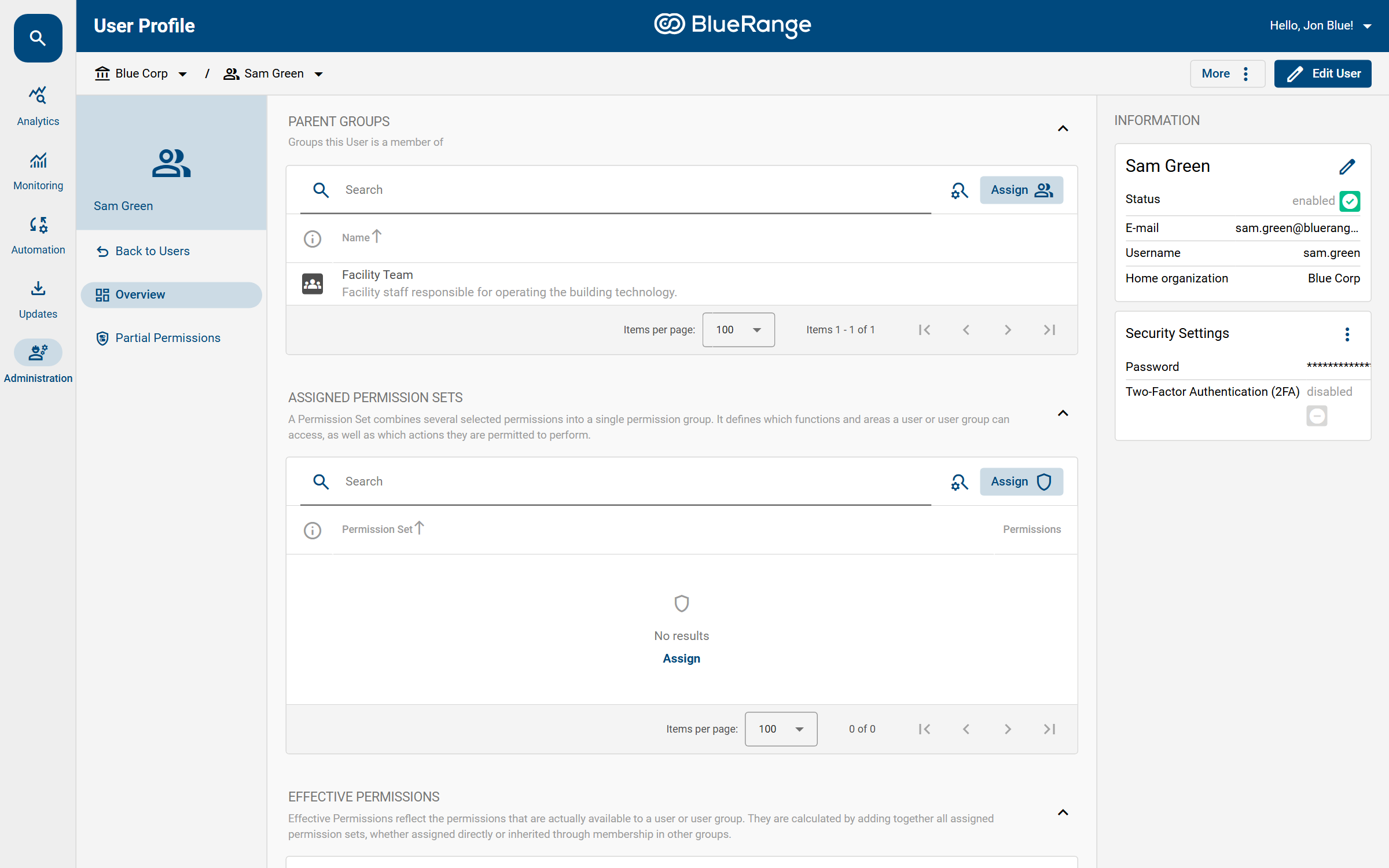
- Parent Groups
-
The groups this user is a member of. Use
Assignto add the user to one or more groups. This is the recommended way to grant access, because the user then inherits everything assigned to those groups. - Assigned Permission Sets
-
Permission Sets granted directly to this single user. Use this only for individual exceptions. For teams, prefer groups.
- Effective Permissions
-
A read-only summary of everything the user is actually allowed to do, calculated from all groups and permission sets combined.
| In most cases you only need to add a user to the right group. Assigning permission sets directly should be the exception. |
Other User Actions
Open a user and use the More menu or the row’s context menu (⋮) for additional actions:
-
Edit User to change the profile details.
-
Change Password / Reset Password to manage the login credentials.
-
Log in as this user to temporarily impersonate the user and verify what they can see (requires administrator rights).
-
Extract Effective Permissions to create a new Permission Set from the user’s current effective permissions.
-
Delete User to remove the account.
Restricting a User to Certain Buildings
If a user should only work with a subset of your buildings, networks or devices, use Partial Permissions. They are available from the Partial Permissions entry in the user’s sidebar.
Access Tokens and Language
-
To create API access tokens for a user, see Creating an API Access Token.
-
Users can switch the interface language (English or German) themselves in their Account Settings.