Partial Permissions
When a Permission Set is assigned to a user or group, its scopeable permissions are granted in one of two ways:
- Organization-wide (the default)
-
The permission set applies to every building, network and device in the organization.
- Partial
-
The permission set applies to only specific buildings, floors, networks or devices that you choose.
Partial Permissions is the editor where you switch an assignment from organization-wide to partial, so a team is given access to just the part of the installation it is responsible for. Only the shield-marked permissions are affected by this; every other permission in the set always stays organization-wide.
Typical use cases:
-
A facility team that should only manage the devices on one floor of a building.
-
An external service partner that may only see their network.
-
A tenant who may only control the actuators in their rooms.
| Partial Permissions are available from version 26.2.x onwards and are not activated on every installation. When available, a Partial Permissions entry appears in the sidebar of every user and group. If you do not see it and would like to use the feature, contact us. |
What Can Be Restricted
Permissions related to the building structure, networks and devices can be scoped, as well as the Read action of MQTT. In the permission set editor these are marked with a shield icon. Scoping works along the entity hierarchy:
-
Organization
-
Buildings → Building → Floor → Room → Zone → Place
-
Networks → Network
-
Devices → Device
All other permissions (for example user administration or alerts) always apply organization-wide and are not affected by Partial Permissions.
| A device can be attached to any level of the building hierarchy from the floor downwards (floor, room, zone or place), not only to the lowest element. A device is covered by a scope whenever the building element it is attached to is covered. |
A restricted MQTT Read covers the live sensor data of the devices the grant covers, and nothing else of the organization’s MQTT topics. It currently only works in the BlueRange Office App; see Restricted MQTT Read for details and limitations.
| Partial Permissions are being extended in future releases, so more permissions will become scopeable over time. |
Opening the Editor
Open a user or group and choose Partial Permissions in the sidebar. The Scope per Permission Set table lists the entity tree on the left and one column for each assigned permission set, plus an Effective column showing the resulting access. The panel on the right summarizes exactly which entities the set is scoped to.
| A permission set must be assigned to the user or group first before it appears as a column here. |
Access States
For each entity you choose how the permission set applies, using the dropdown in the permission set’s column:
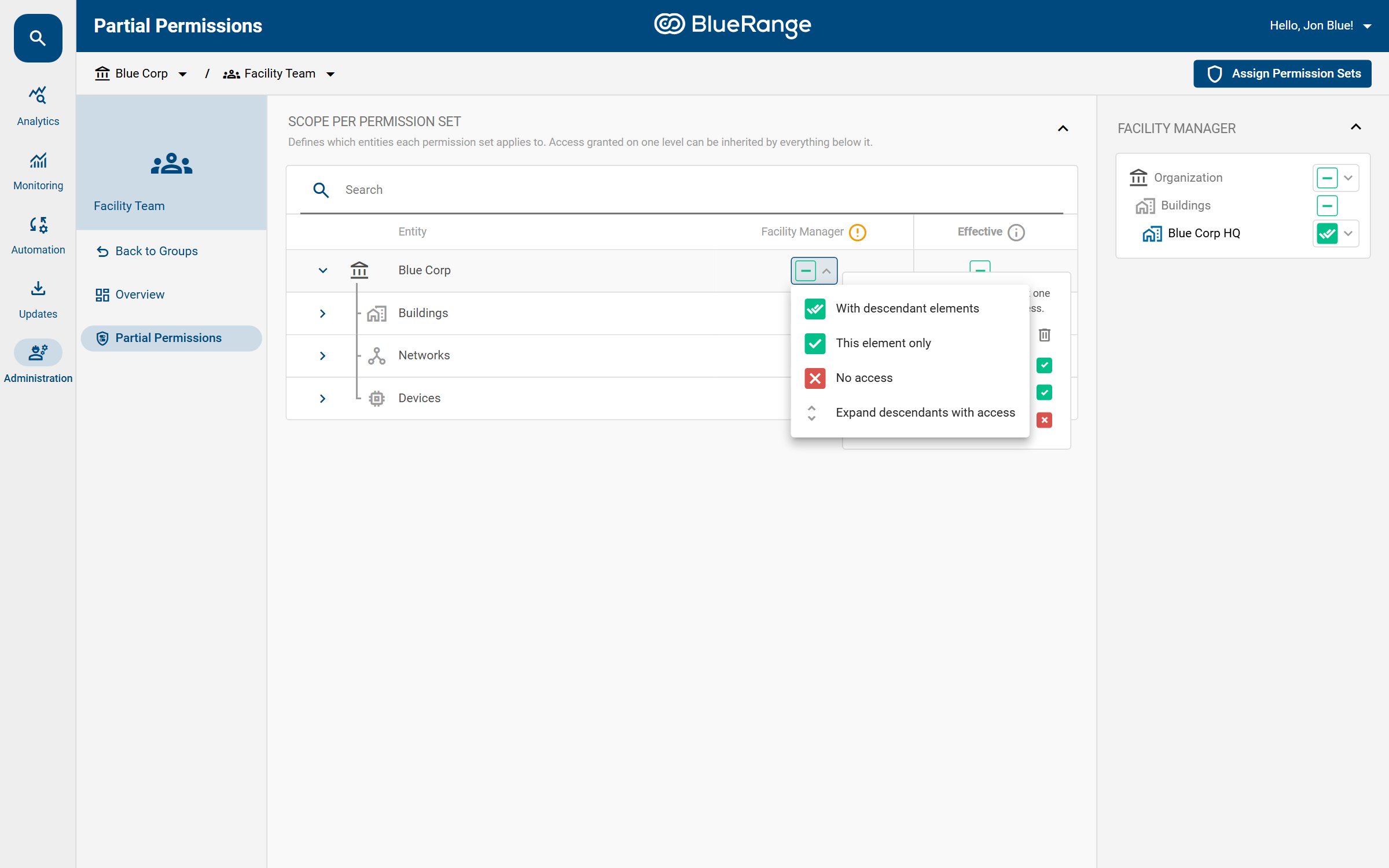
| State | Meaning |
|---|---|
With descendant elements |
Full access to this entity and everything below it (e.g. a building including all of its floors, rooms and devices). Future child elements are automatically included. |
This element only |
Access to this entity only. Child elements need their own grant. |
No access |
The permission set does not apply to this entity. |
Parent rows that contain a mix of allowed and disallowed children show an indeterminate (dash) state. A dash also means the parent element itself stays implicitly readable so the user can navigate down to what they can access (see Parent Elements Stay Visible). Changes are saved automatically.
The Effective Column
Next to each permission-set column there is an Effective column. It shows the resulting access for each entity after everything is combined: the setting you chose here, access inherited from a parent, and grants from any other permission set the user or group has.
Hover the icon in the Effective column (or in a permission-set column) to see a tooltip with the exact authorities granted on that entity, broken down by area and by action (view, create, edit, delete):
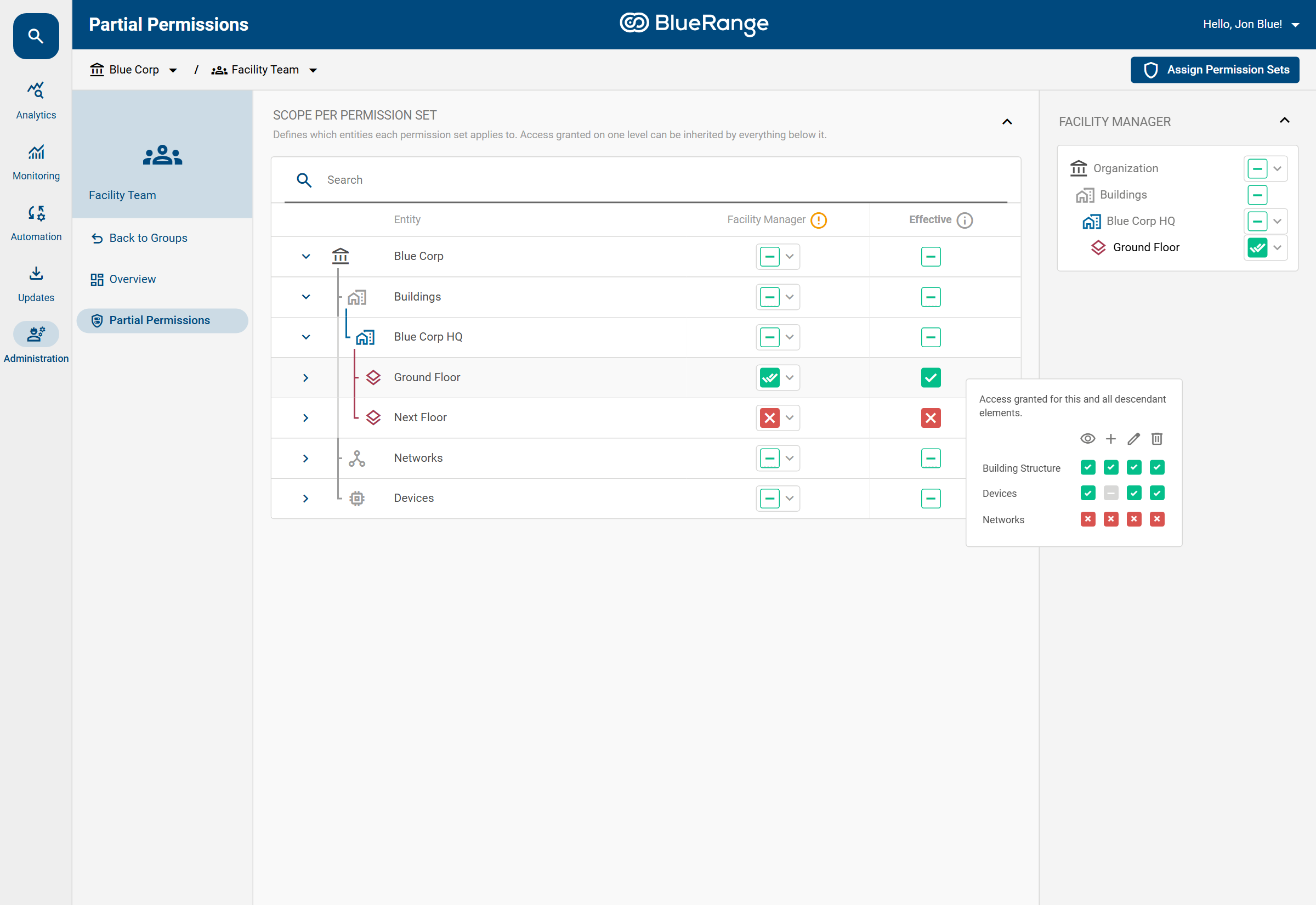
In this example the tooltip for the Ground Floor shows that the Facility Manager set grants full access to the Building Structure, read/edit/delete on Devices, and no access to Networks — exactly what that permission set contains, applied to this one floor.
Example 1: Restrict a Team to One Building
This restricts the Facility Manager permission set of the Facility Team group to the Blue Corp HQ building:
-
Open the Facility Team group and choose Partial Permissions.
-
In the Facility Manager column, set the top-level Organization row to No access.
-
Expand Buildings and set Blue Corp HQ to With descendant elements.
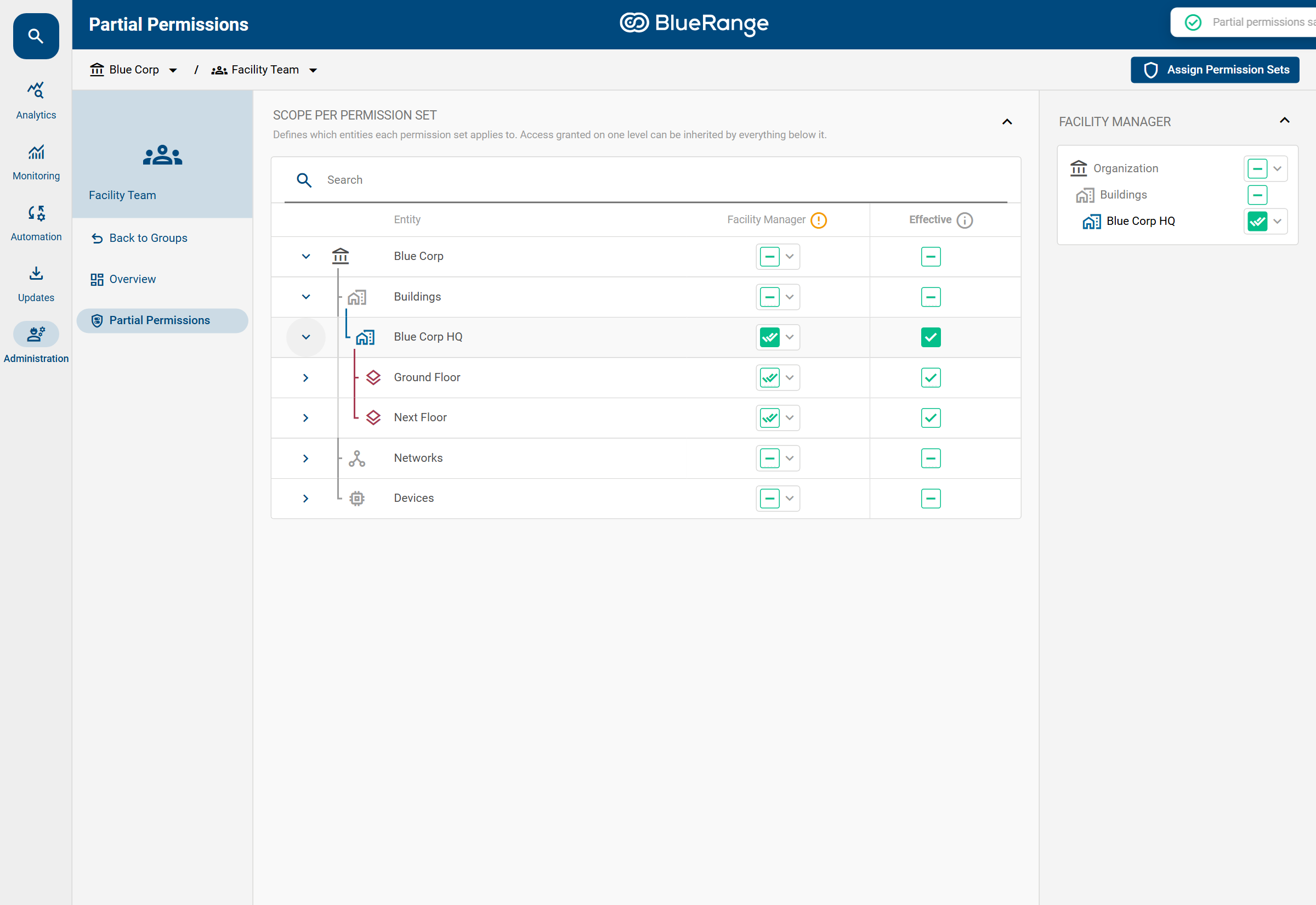
The team now has its Facility Manager permissions on Blue Corp HQ and everything inside it, but nowhere else. Expanding the building shows how the access cascades down: because Blue Corp HQ is granted With descendant elements, its Ground Floor and Next Floor automatically inherit the access (shown as green checks) even though they were not granted individually.
Example 2: Down to a Single Floor
You can scope as deep as you like. Here the same team is granted access to only the Ground Floor of Blue Corp HQ, while the Next Floor remains inaccessible:
-
Set Blue Corp HQ to No access (so the building does not grant everything below it).
-
Expand Blue Corp HQ, then set Ground Floor to With descendant elements.
-
Leave Next Floor at No access.
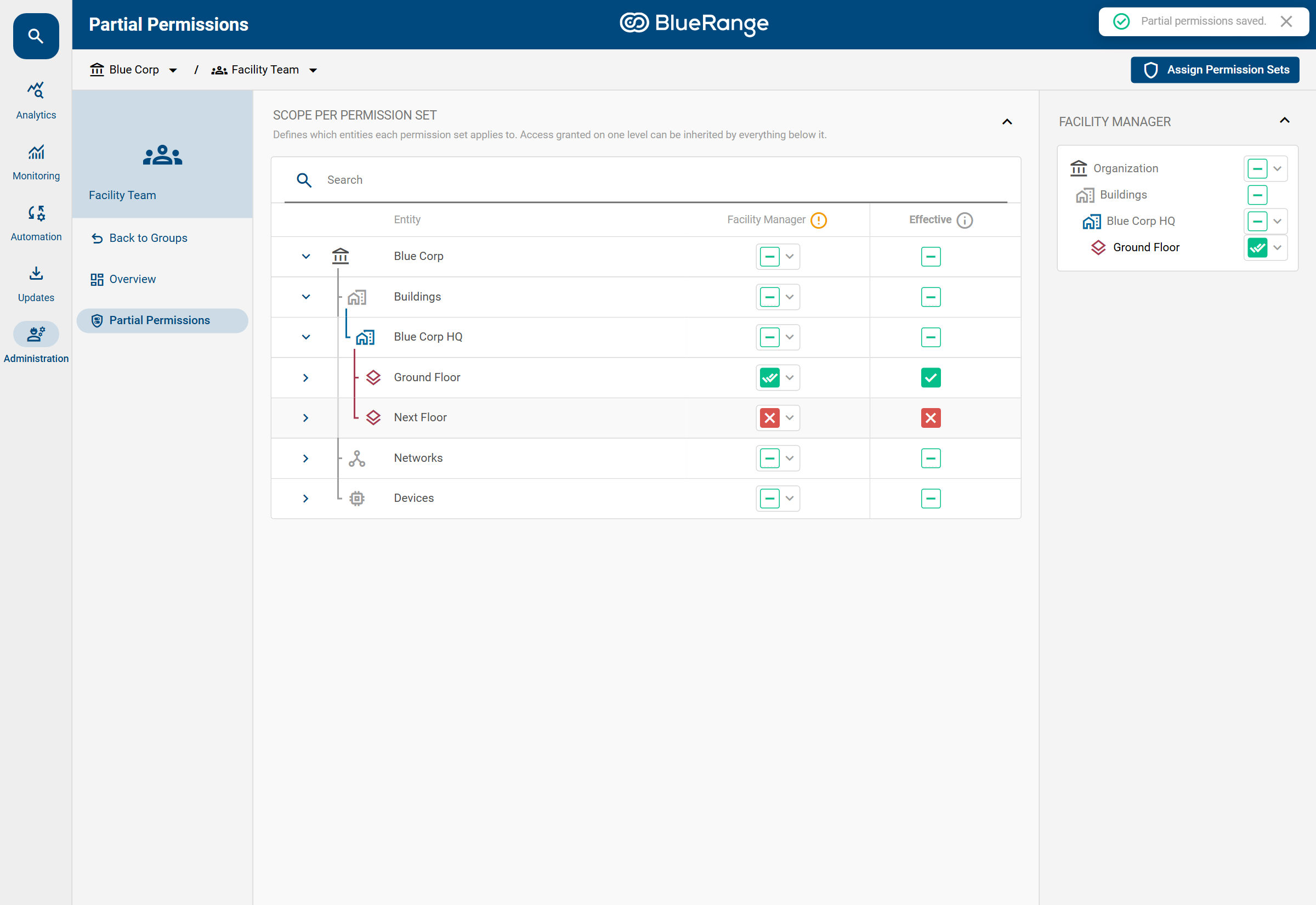
The green double-check on Ground Floor means full access to it and everything below; the red cross on Next Floor means no access. The parent rows (Blue Corp HQ, Buildings, Blue Corp) show a dash. This means two things: only part of what is below them is granted, and the user is given implicit read access to these parent elements so they can navigate down to the Ground Floor (see Parent Elements Stay Visible).
"This Element Only" vs. "With Descendant Elements"
The difference between the two "granted" states is important:
With descendant elements grants the entity and everything below it. The screenshot in Example 1 shows Blue Corp HQ granted this way, so its floors, rooms and devices all inherit access (shown as green double-checks on the floors).
This element only grants just that one entity and nothing below it. Here Blue Corp HQ is granted with This element only, so the building itself is accessible but its Ground Floor and Next Floor are not:
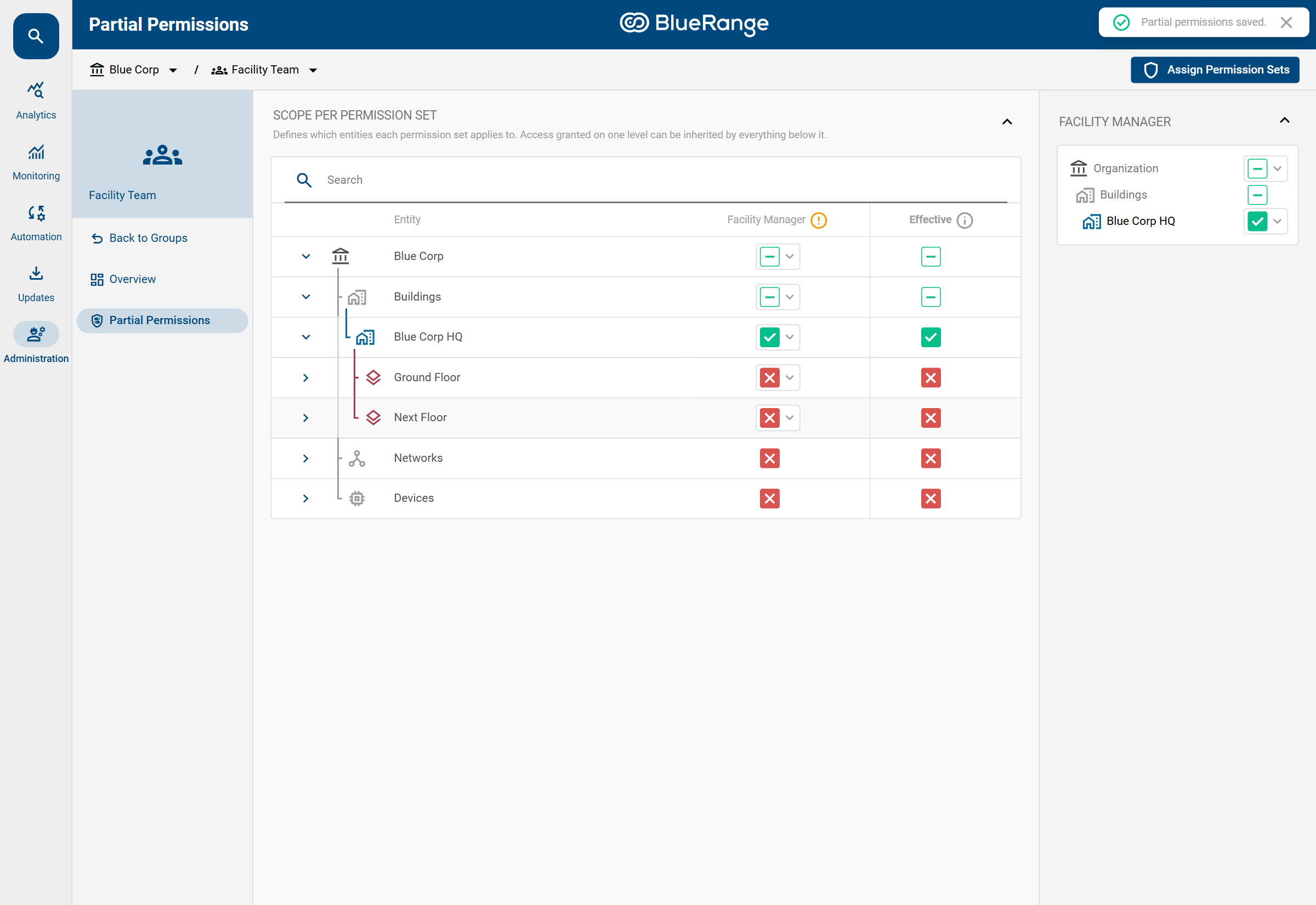
Use This element only when someone should work with an entity itself but not automatically with everything inside it. Grant the specific child entities separately if they also need access.
What the User Sees
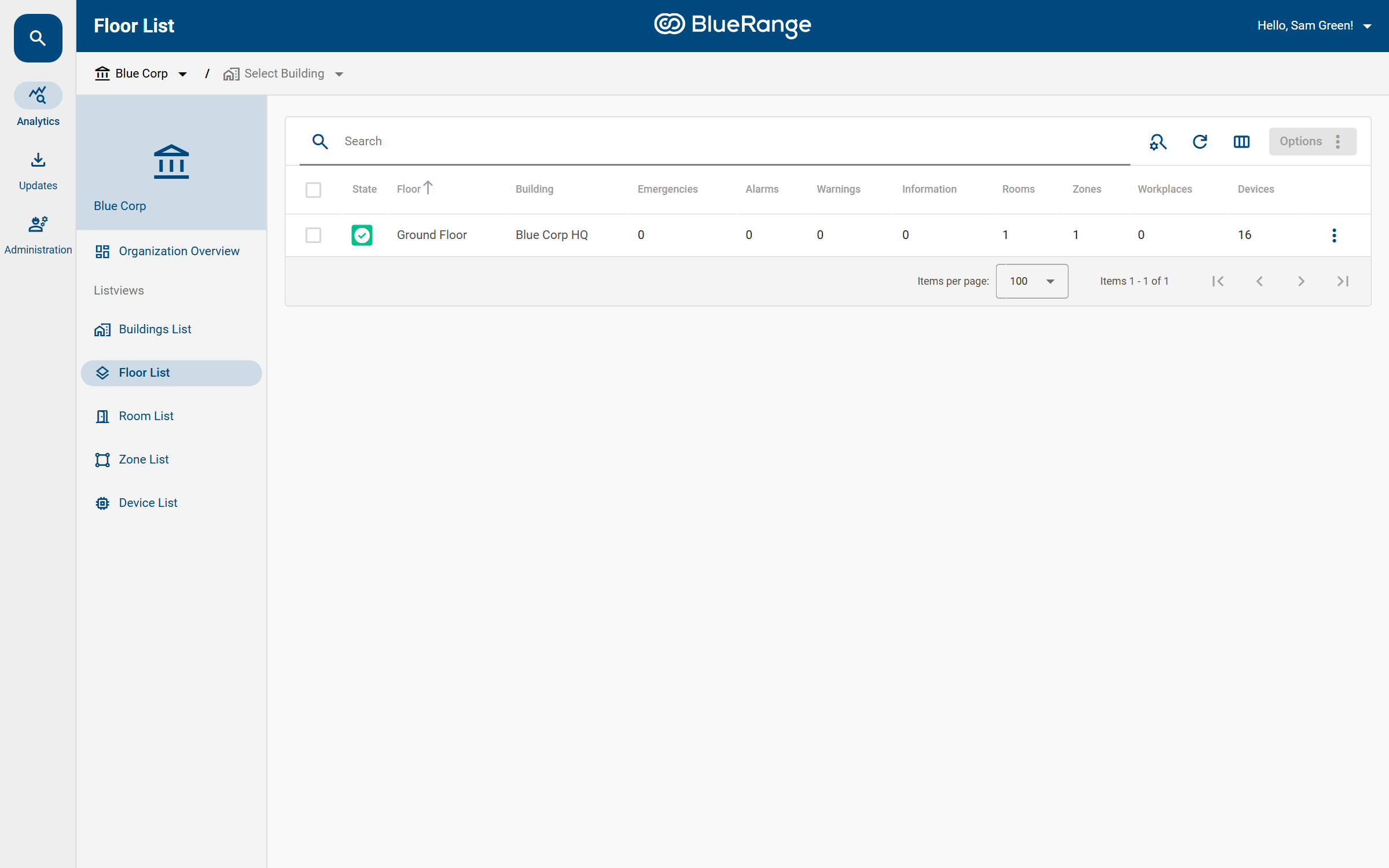
Partial Permissions directly shape what a member experiences in the Portal. Sam Green is a member of the Facility Team, so the scoping above applies to him. When Sam opens the Floor List, he only sees the Ground Floor, and the Next Floor is not visible to him at all:
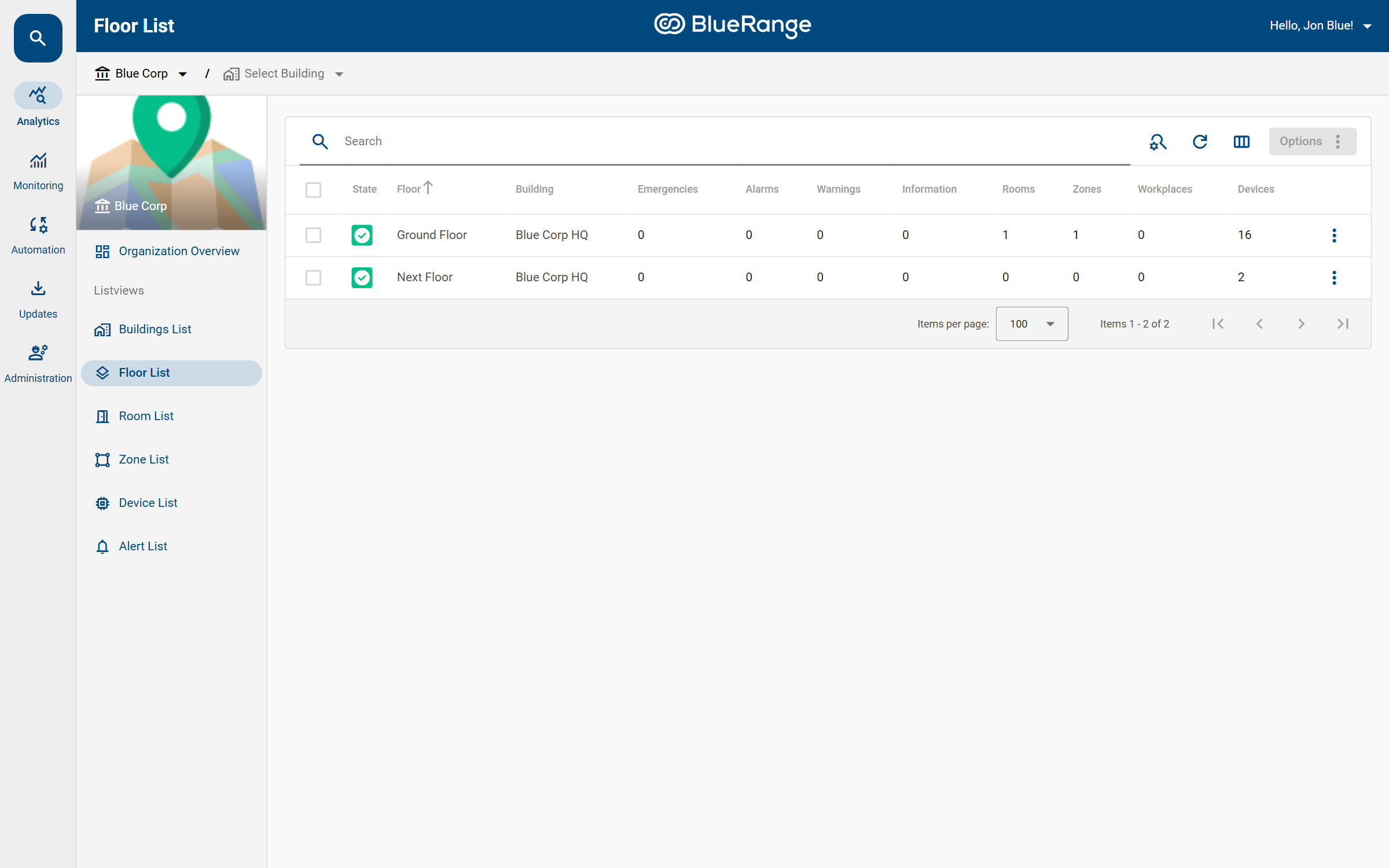
An administrator, whose access is organization-wide, sees all floors of the building:
To check what a specific user can see without knowing their password, use Log in as this user from the user’s More menu.
|
Parent Elements Stay Visible
When a permission set is scoped to a child entity, the entities above it in the hierarchy stay visible in read-only form. This happens automatically so the user can navigate down to what they are allowed to work with.
In the example above, Sam Green can still see the Blue Corp HQ building and the Blue Corp organization as context, even though his actual access covers only the Ground Floor. Without this, he would have no way to reach the floor he is responsible for.
This implicit visibility only enables navigation. It grants no additional rights on the parent entities, and it does not reveal siblings such as the Next Floor.
Grants Cascade Down and Only Add Up
Two rules govern how partial permissions combine, and both matter:
- Access cascades downward
-
With descendant elements automatically covers every child, now and in the future. Access never flows upward to a parent or sideways to a sibling.
- Access is additive
-
Just like all permissions, scoped grants only ever add access. You cannot place a "No access" on a child to carve a hole out of a parent that was granted With descendant elements. The broader grant always wins.
|
To give different access on lower levels, do not cascade from the top. If you grant a building With descendant elements, every floor and room inside it is included and you cannot exclude one later. To allow only some children (as in Example 2), leave the parent at No access (or This element only) and grant the specific children individually. This is why Example 2 sets Blue Corp HQ to No access before granting the Ground Floor. |
Example 3: Office App Users Limited to Their Rooms
Employees who use the Office App should see the live readings and operate the controls of the rooms they work in, without being able to read the sensor data of the whole organization. To achieve this, combine a permission set without Sensor Data with a restricted MQTT Read:
-
Create a permission set from the Employee template. It contains read access to the building structure and devices, Climate, Lighting and Shading Control, Environmental Sensors, the sensor and actuator metadata, Services and MQTT Read, but neither Sensor Data nor MQTT Write. Remove the control permissions the employees should not have.
-
Assign the permission set to a group, for example Office Employees, and add the employees to it.
-
Open the group, choose Partial Permissions, set the Organization row to No access and grant the employees' rooms (or a whole floor or building) With descendant elements.
In the Office App, the members now get live environmental readings (temperature, CO2, humidity and so on) and the feedback of the controls they may operate, in the granted rooms only. Other sensor types and other rooms are denied. In the Portal they can browse the granted rooms, but see no live updates, because those need an organization-wide MQTT Read.
|
Keep the employees' access restricted:
|
Best Practices
Follow these guidelines to keep partial permissions correct and easy to maintain:
-
Grant at the highest level that still fits, and use "With descendant elements". Because this includes future child elements automatically, new floors, rooms or devices added later are covered without any extra work.
-
Avoid granting access room-by-room or device-by-device. Such narrow grants do not include entities created later, so a new room or device would be invisible until you add another grant. Prefer granting a whole building, floor or network instead.
-
Use fewer, broader grants. The fewer individual grants you create, the easier the scope is to understand and audit. A single grant on a building is far more maintainable than dozens of per-room grants.
-
Scope on groups, not individual users, whenever a whole team shares the same responsibility area.
See Also
-
Permission Sets (define what a set may do before scoping it)
-
Effective Permissions (how partial grants appear, single vs. double check)
-
Managing Groups (assign permission sets to a team)
-
Restricted MQTT Read (what a restricted MQTT Read includes and where it works)